 Engage
Everything it does, shown as it happens.
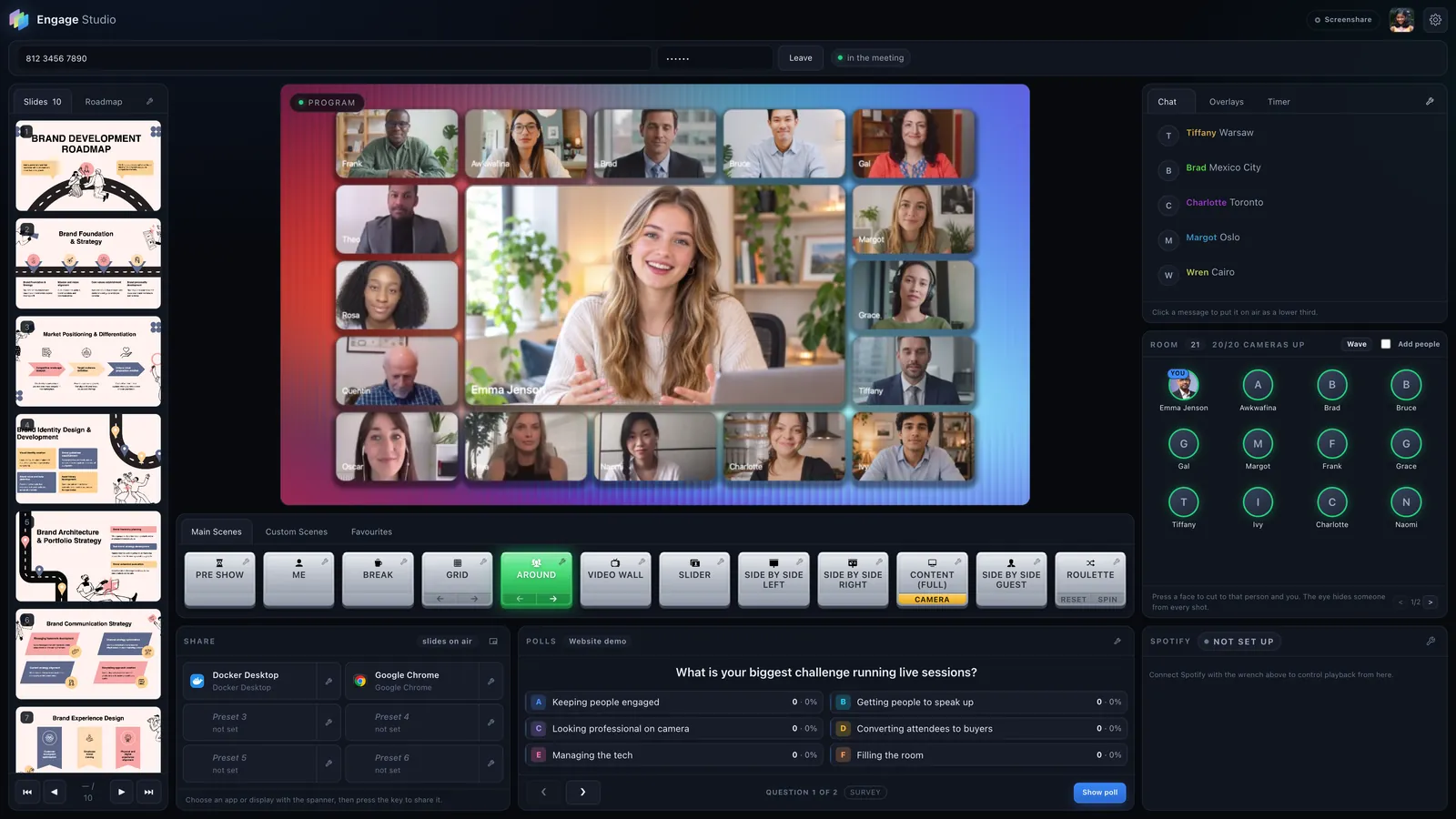
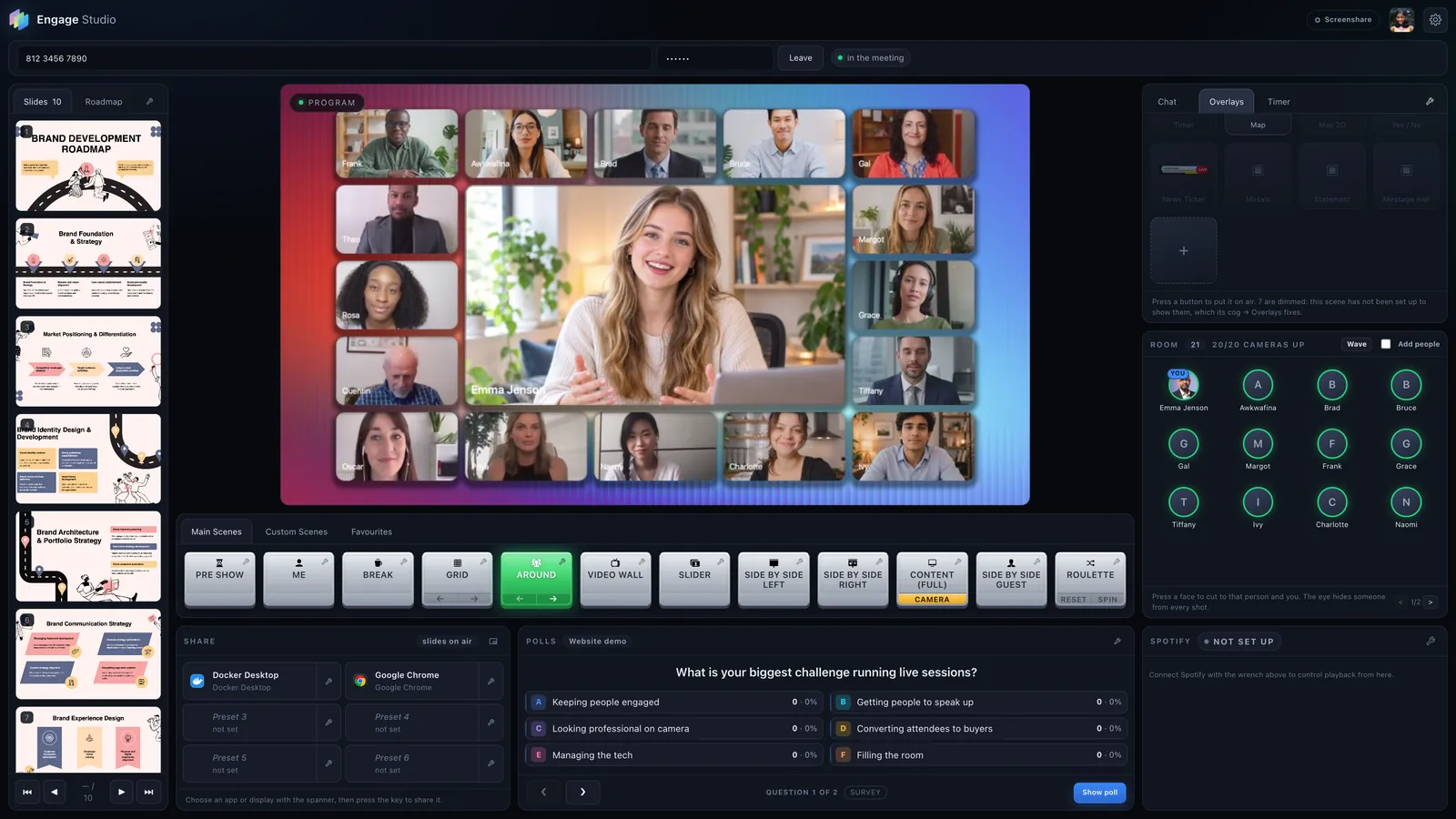
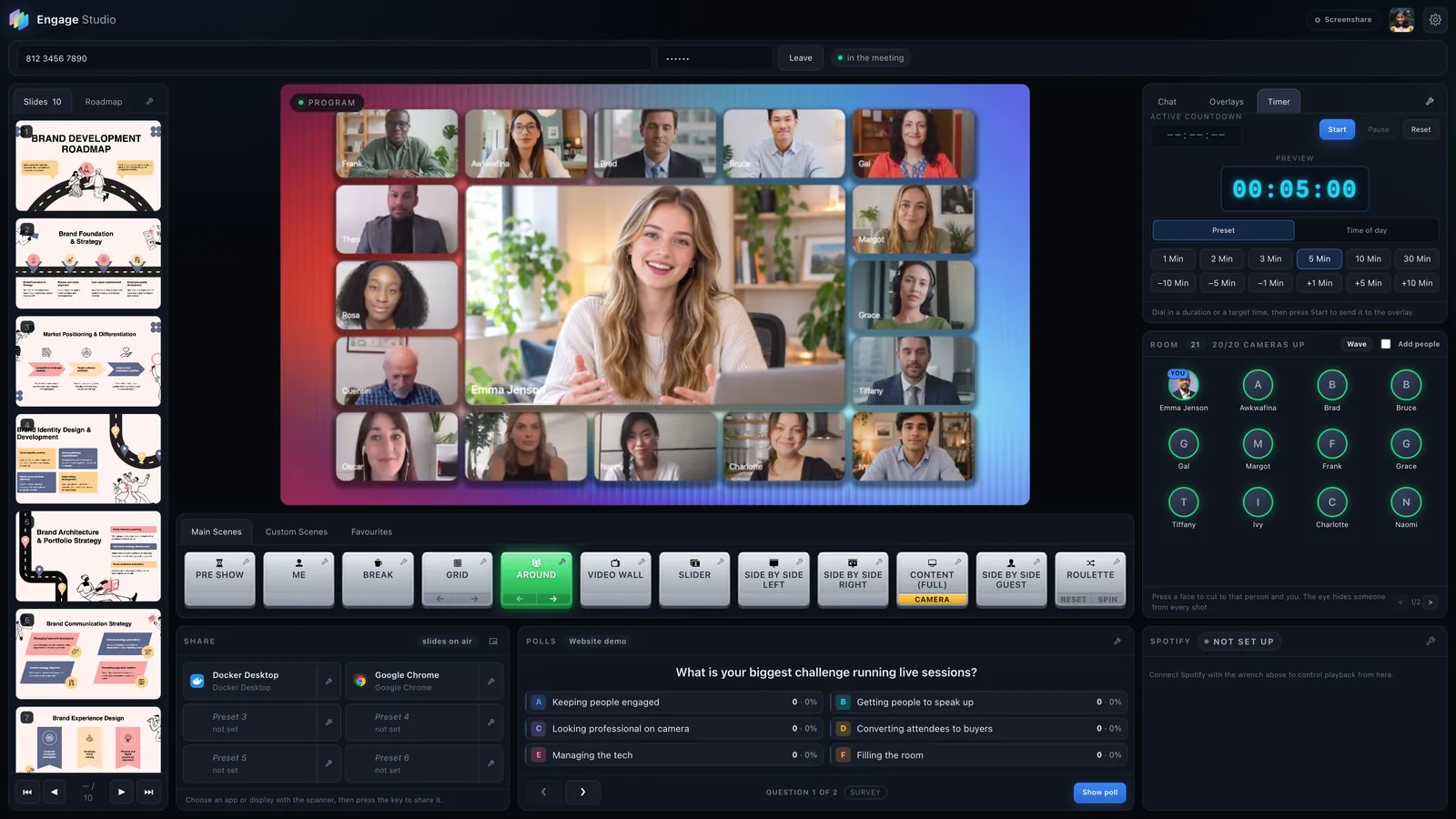
Every picture on this page is a frame Engage Studio rendered in a live Zoom meeting with twenty people. Nothing is mocked up.
It looks like a broadcast.
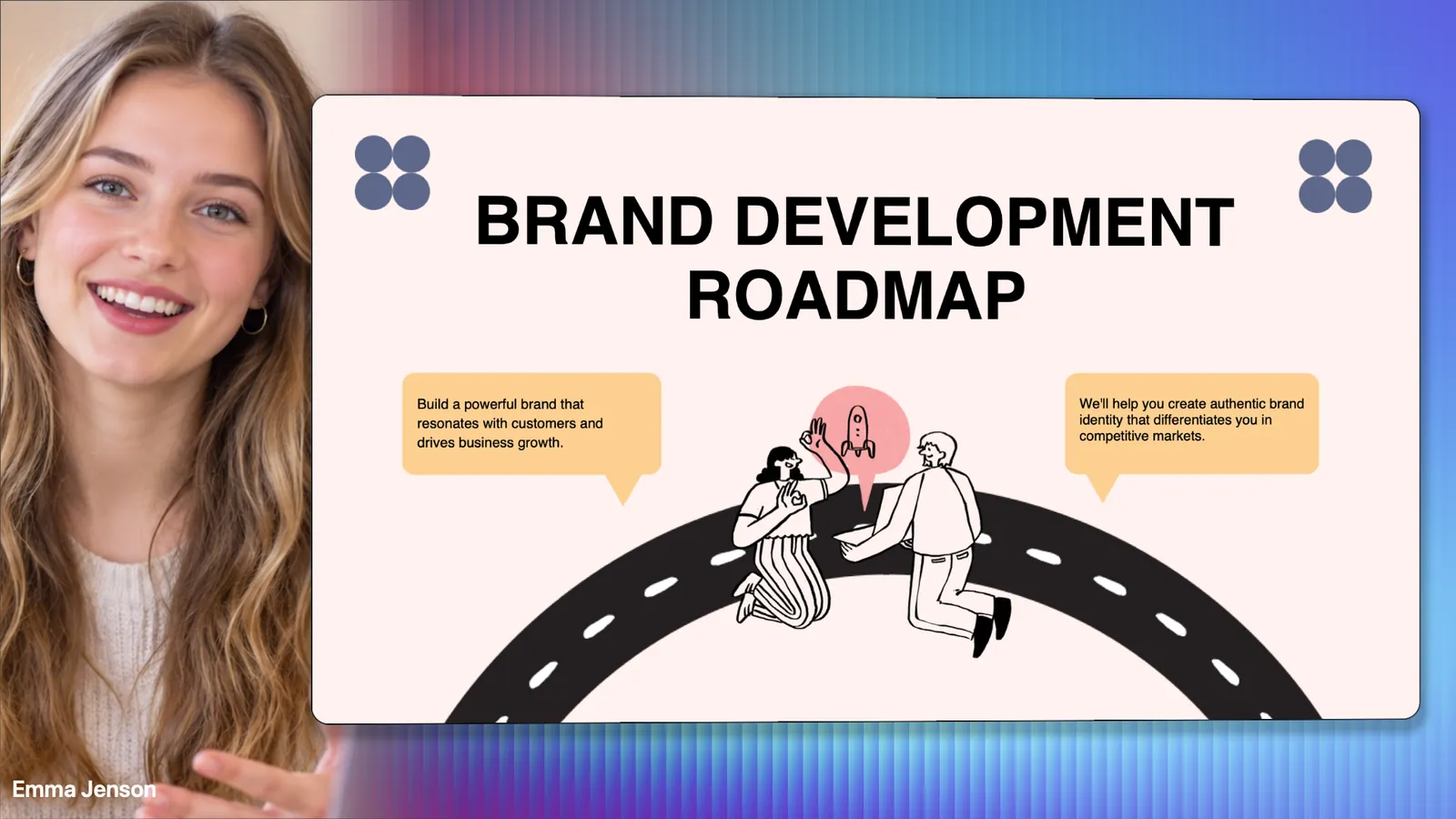
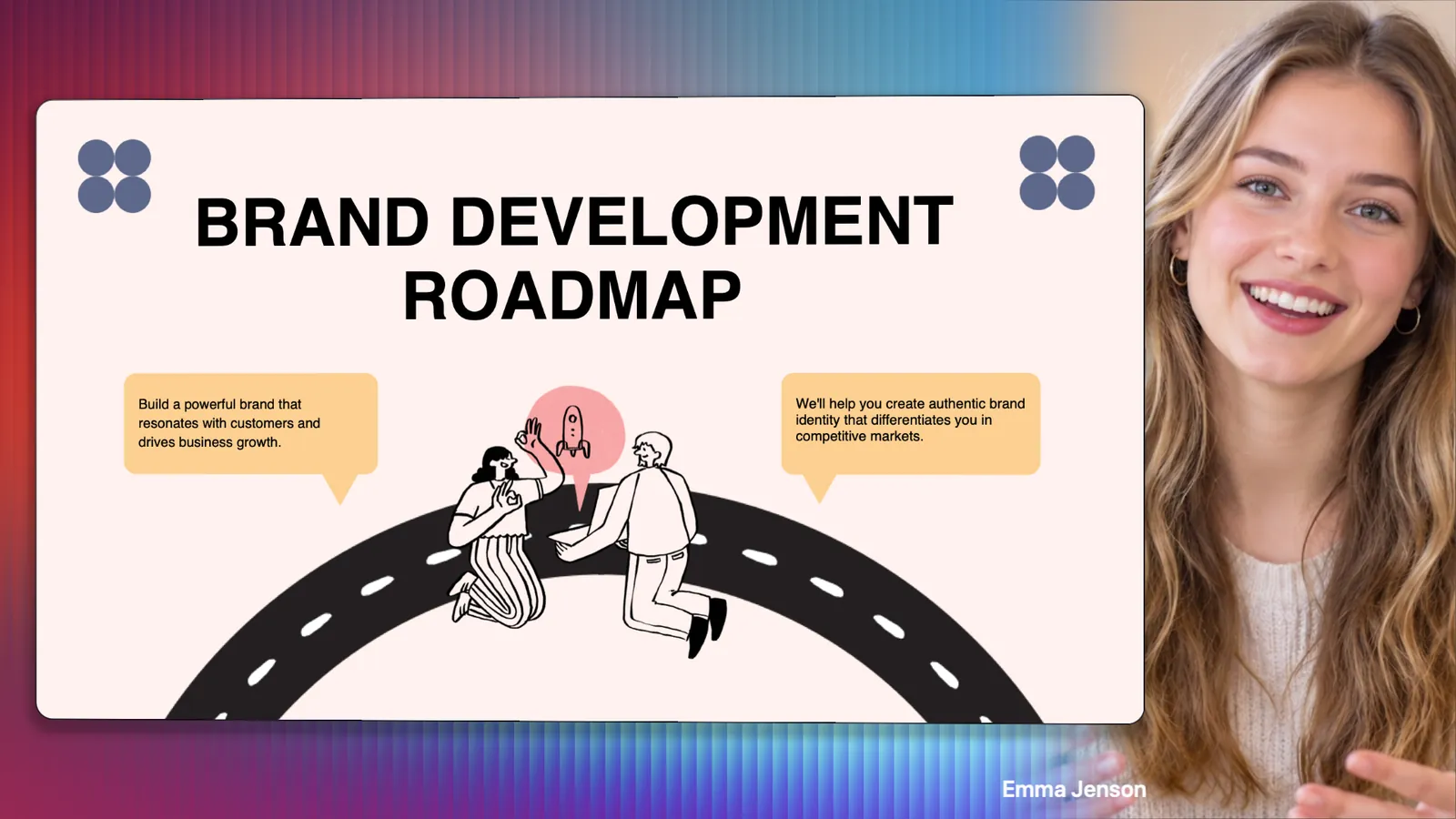
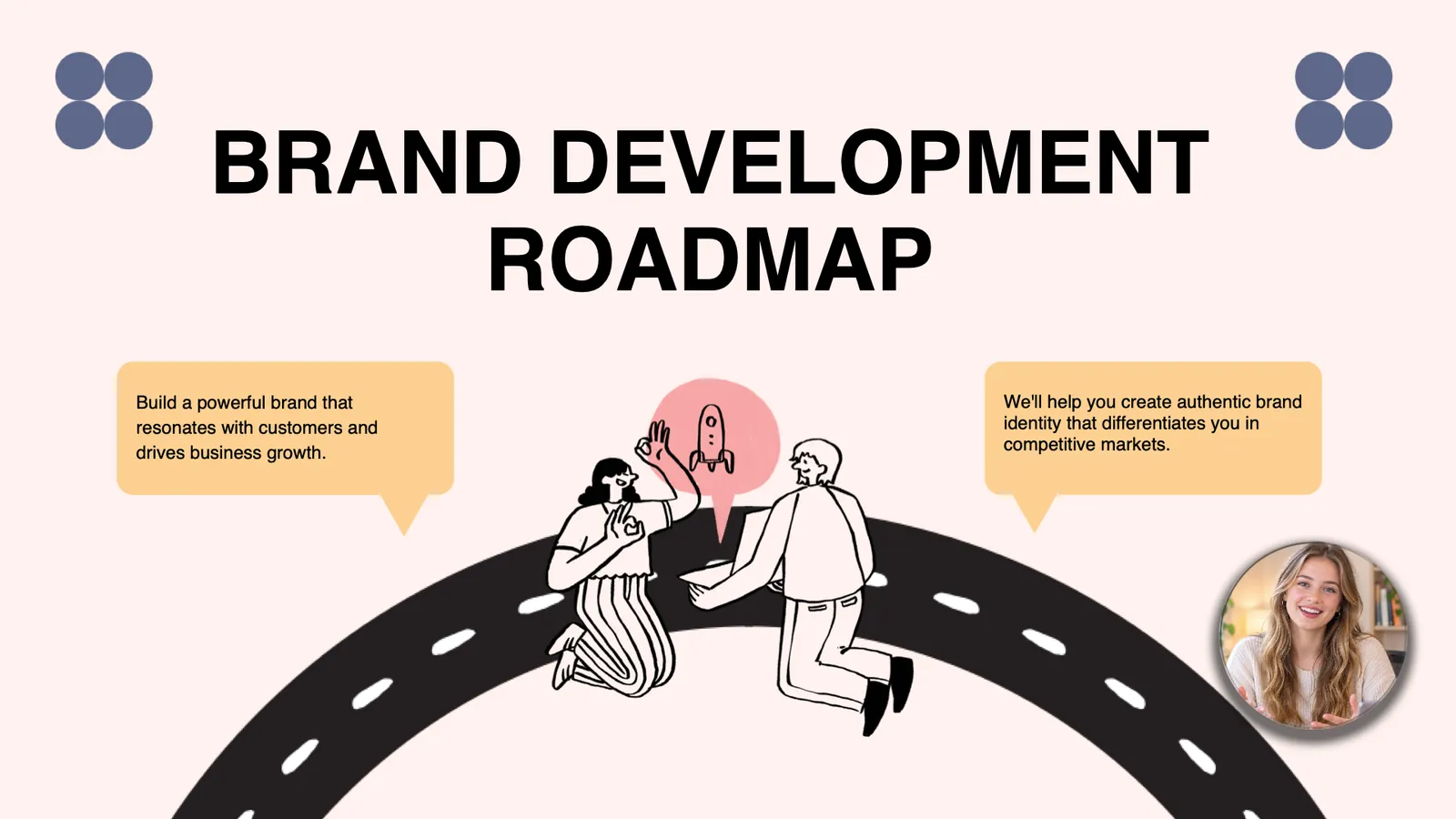
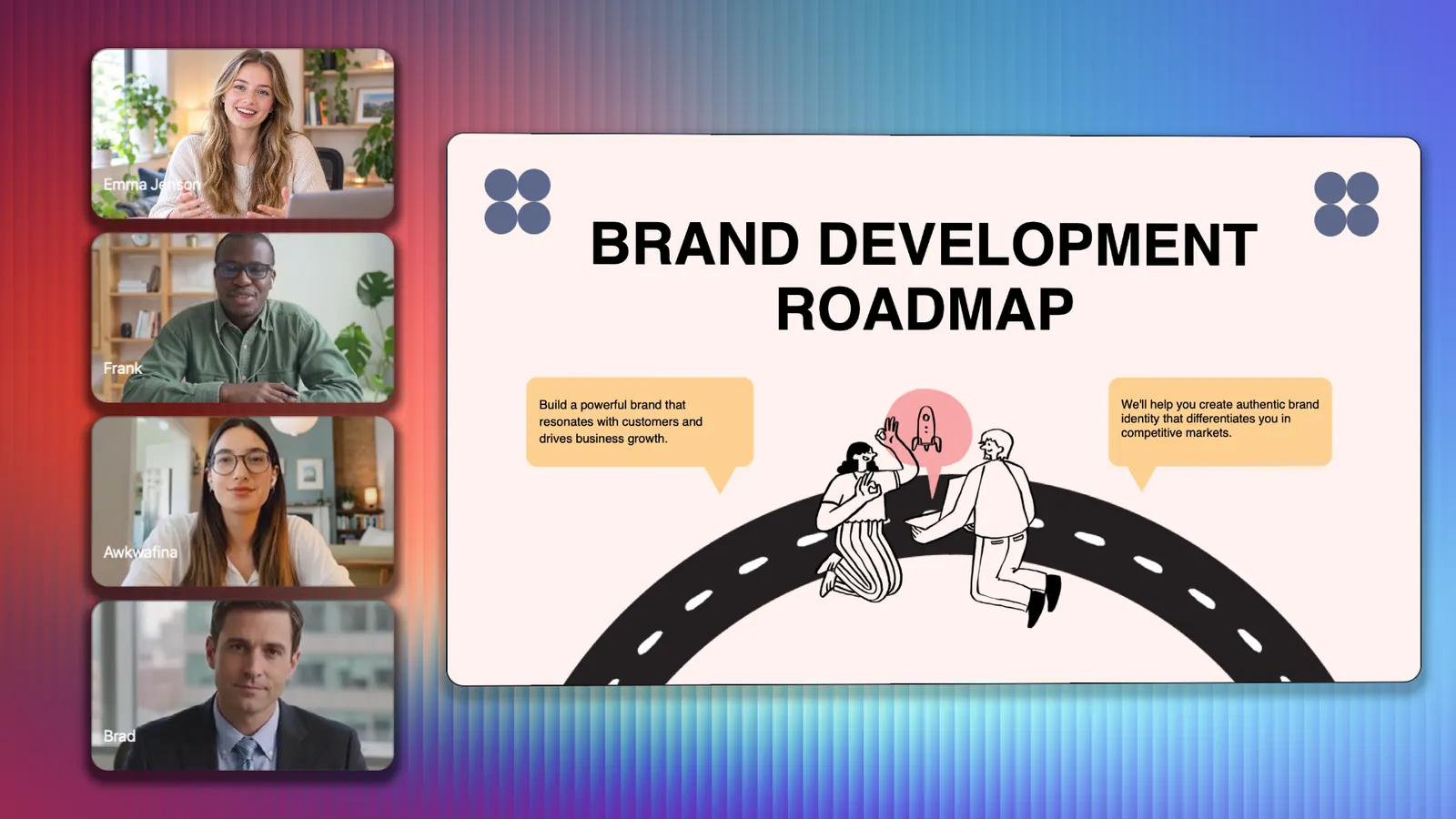
24 scenes, 12 built in and 12 you design, eight ways to arrange the room, and your slides on the same stage as you. Each scene carries its own backdrop, logo, music and transition, so one press changes the whole look.
Present without disappearing.
Your deck joins you on stage instead of replacing you with a screen share. Step through it from the console without leaving the shot.
- PowerPoint, Keynote and PDF
- You on the left, the right, or as a bubble over the slide
- Up to three guests in a column beside the content
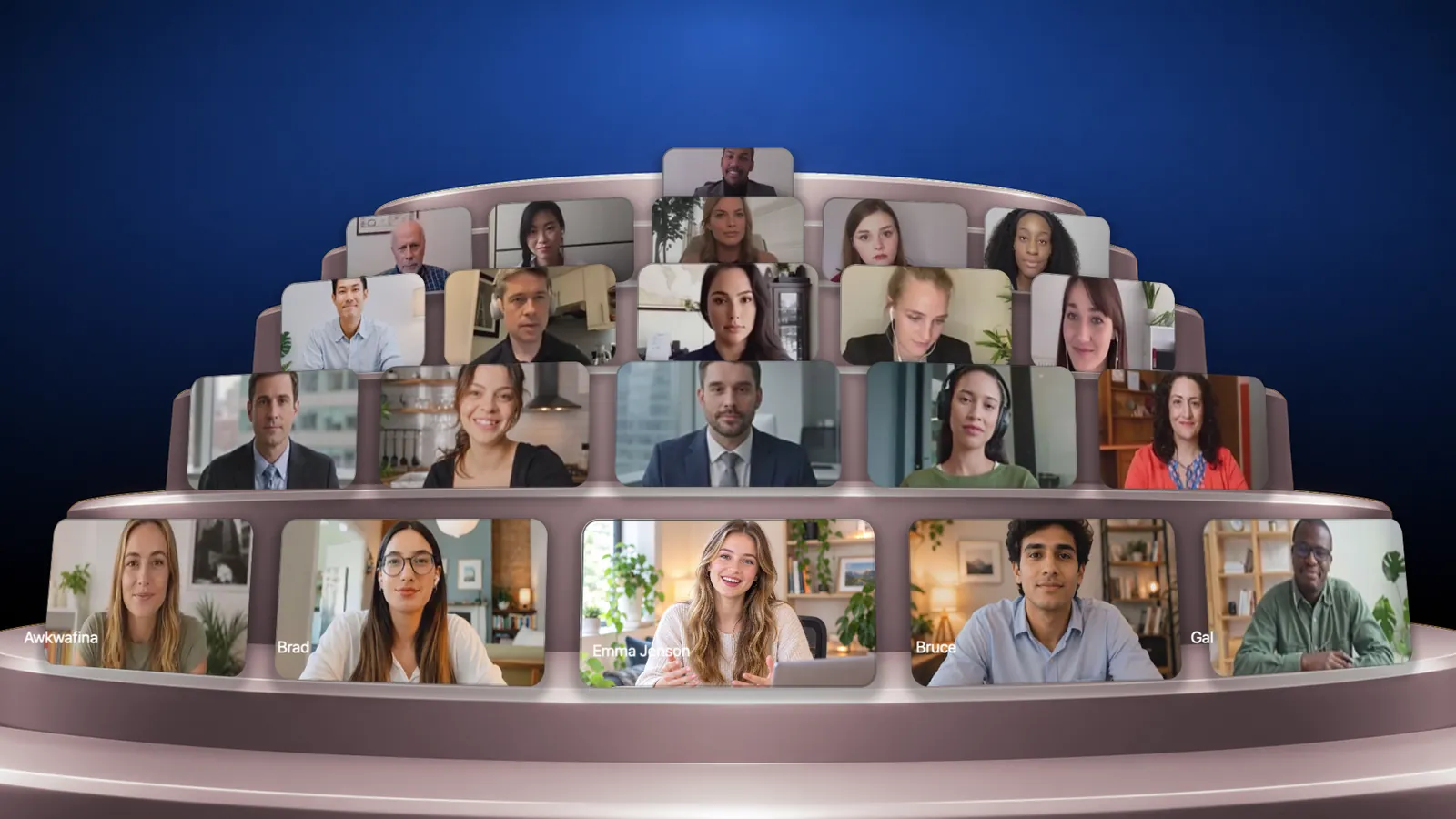
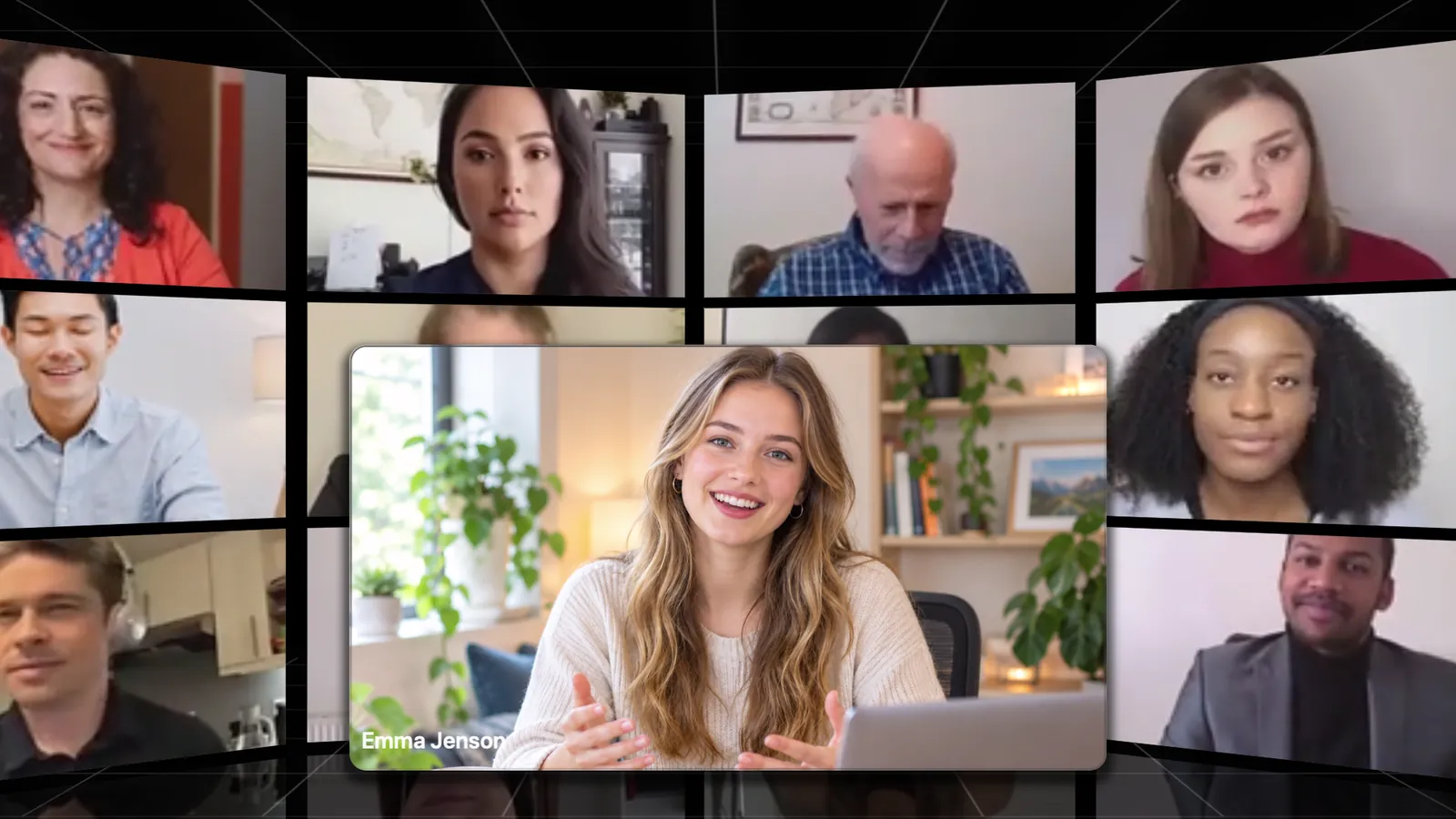
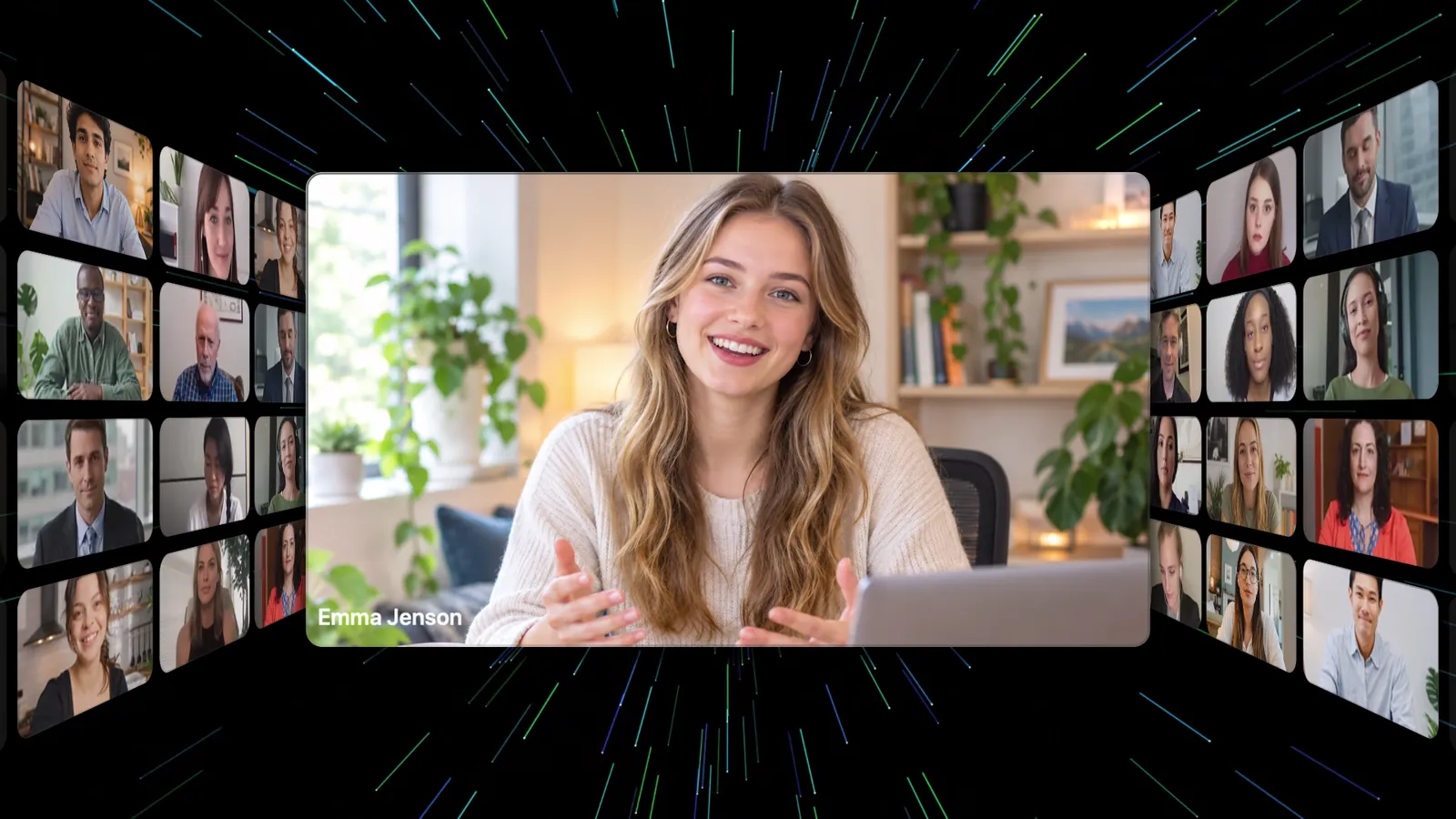
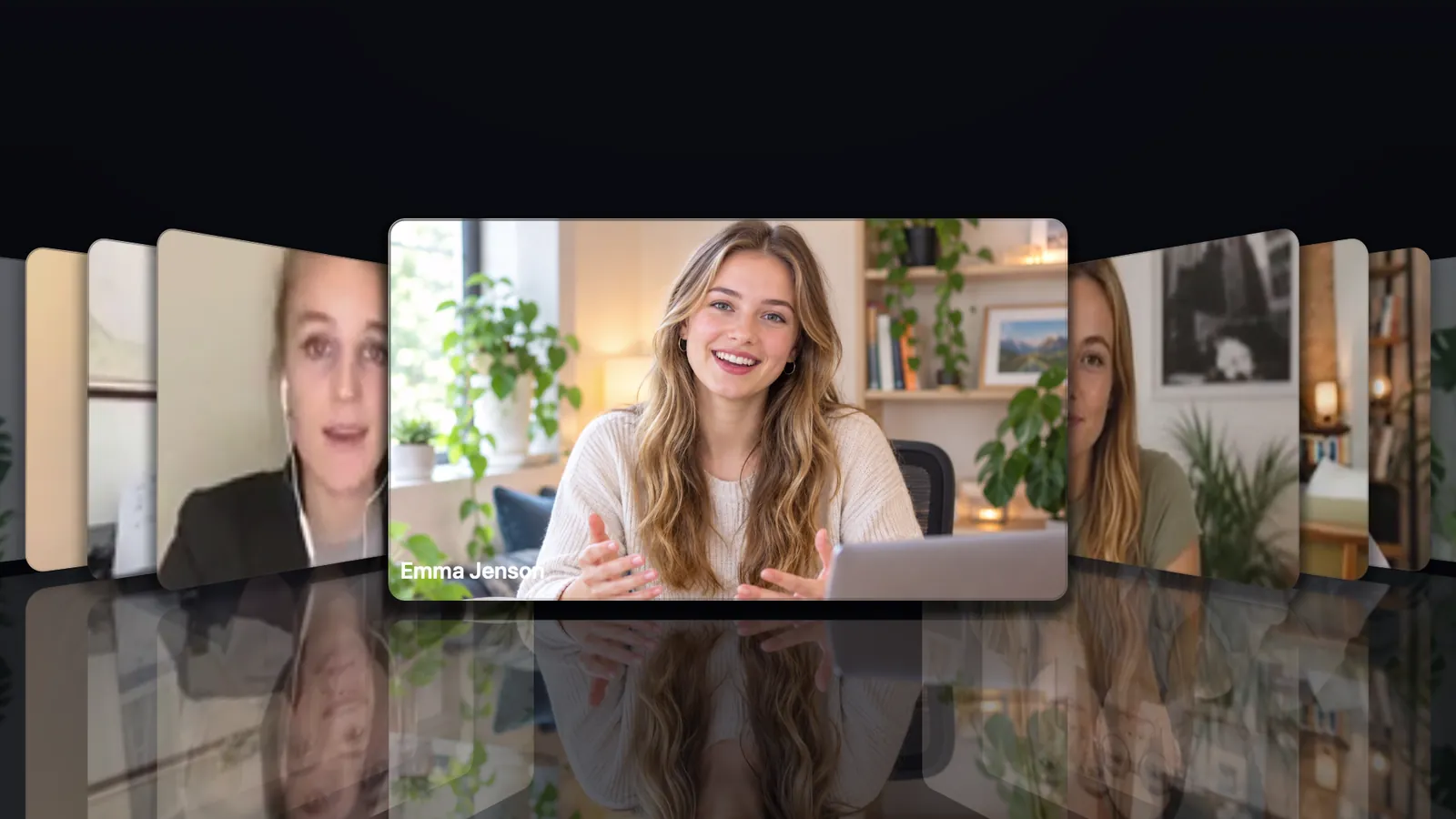
Seat the whole audience around you.
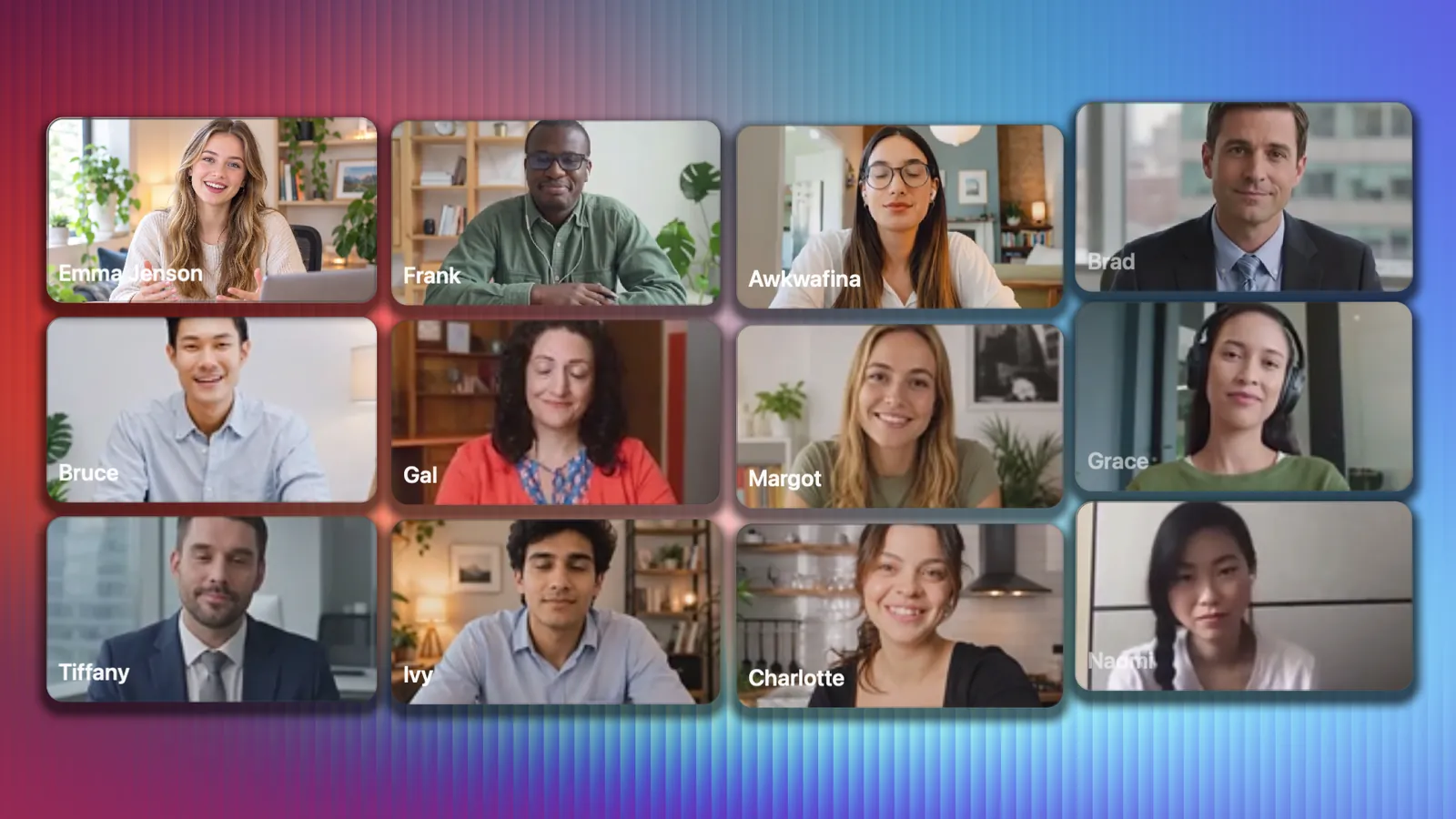
Attendees stop being tiles and become a room. In Theater, faces stay the same size however many join: a new arrival starts the next row instead of shrinking everyone.
- Theater, video wall, tunnel, carousel, slider, grid and around
- Pages through a large room with you pinned in place
- Cinematic transitions: cube, flip, slats, whip and more
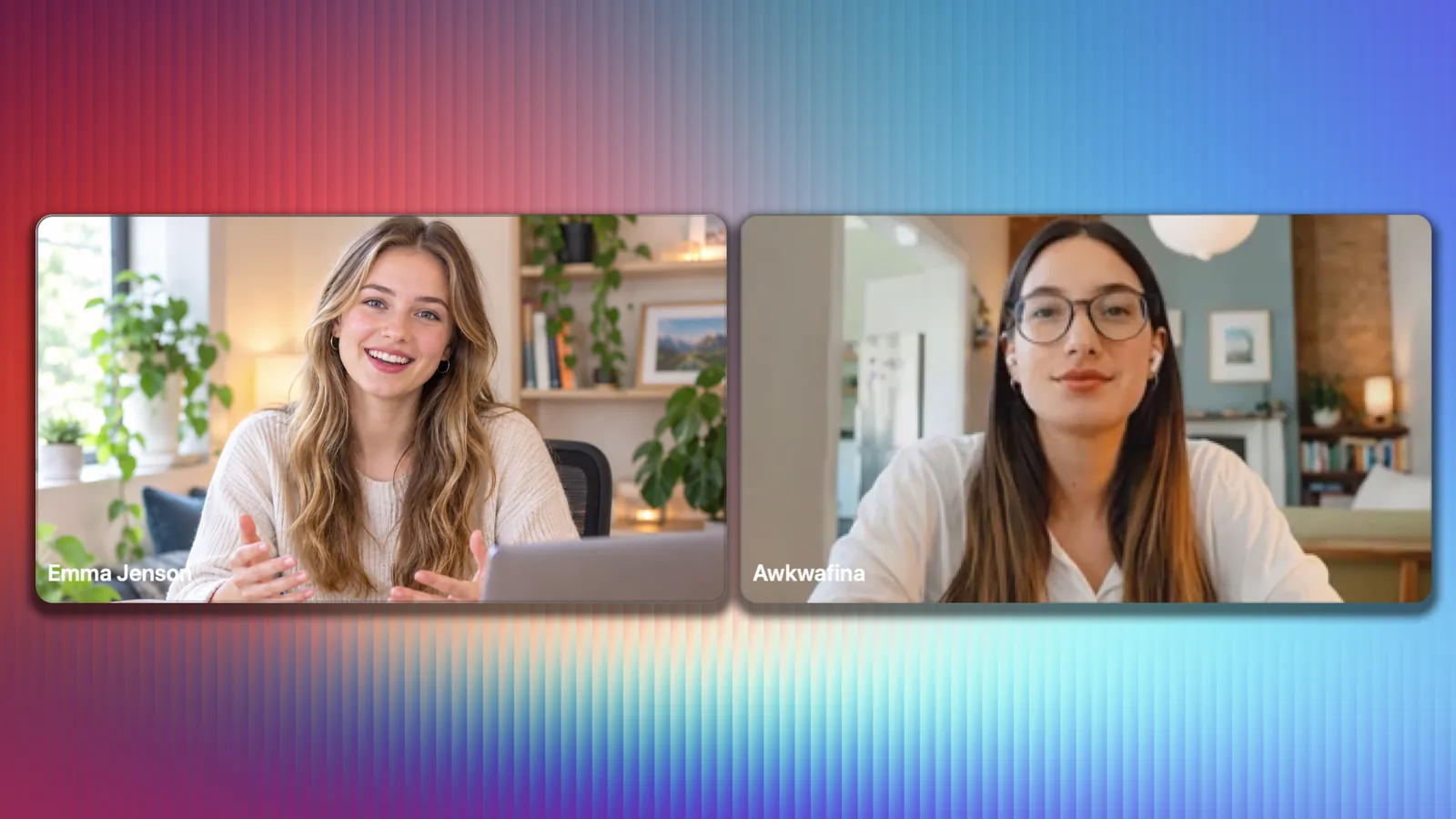
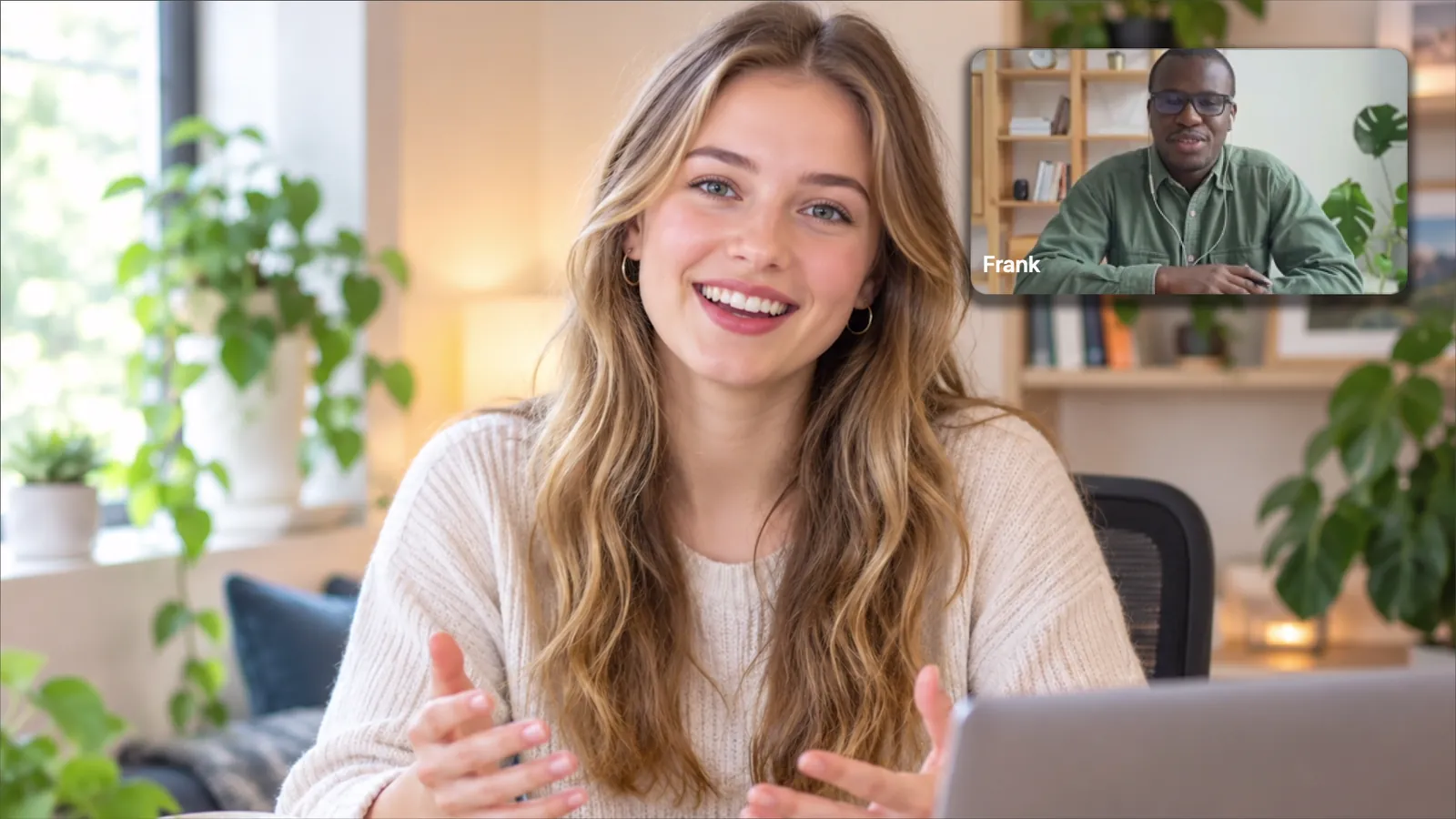
Bring anyone up with one press.
Press a face in the console and that person joins you on screen. Press again and they return to the room.
- Two-shots and panels of up to six
- Over-the-shoulder guest for interviews
- Hide anyone from the show without touching Zoom
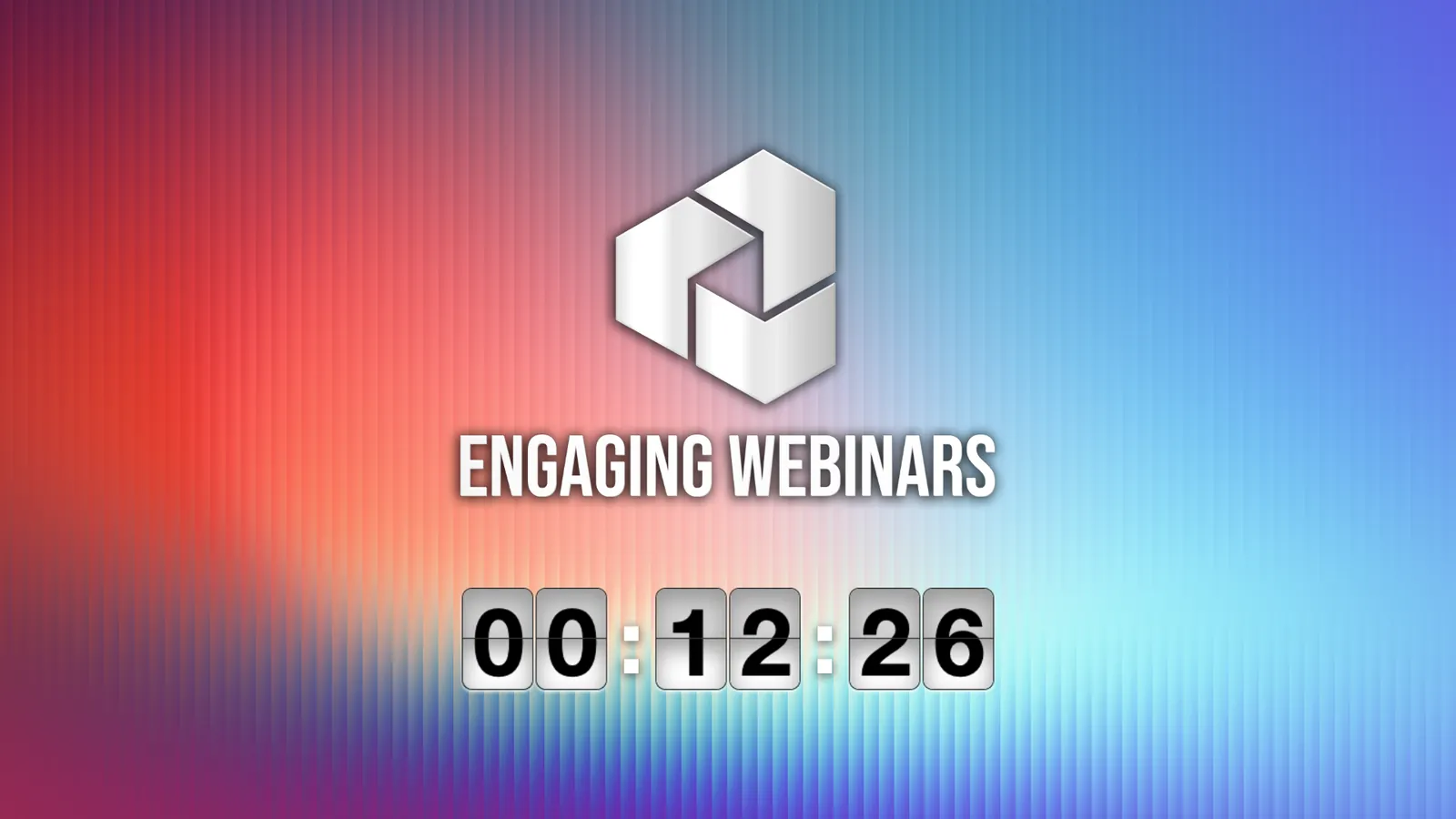
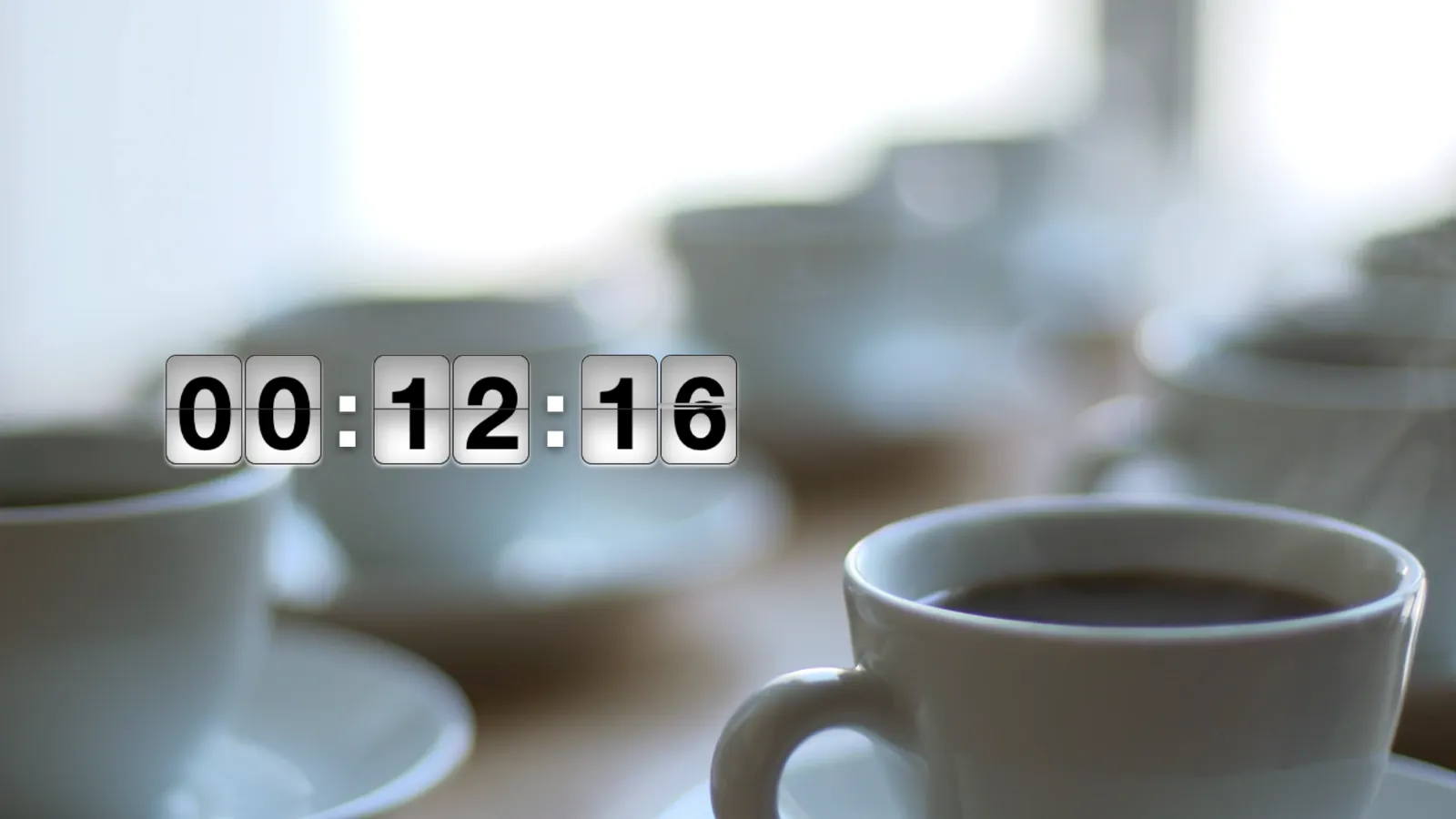
Open like a broadcast, break like one too.
A branded holding card with a flip-clock countdown before you start and during breaks, with your music playing underneath.
- Your backdrop, logo and music on every scene
- Countdown to a time or for a length
- Save the whole look and load it next show
The audience takes part.
Everything here runs on the Zoom chat your attendees already have. They type a letter, a city or a message, and it appears in the show.
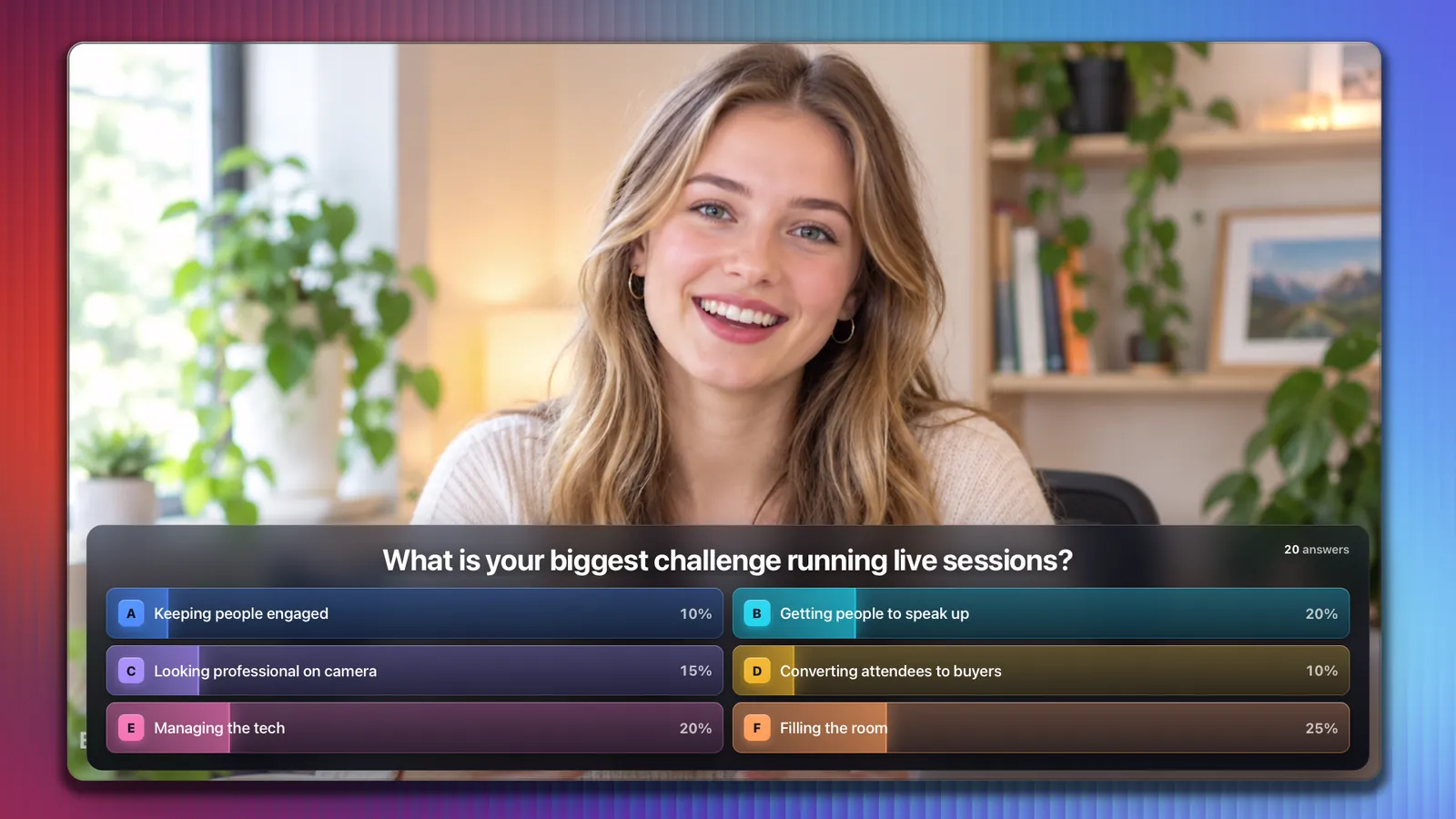
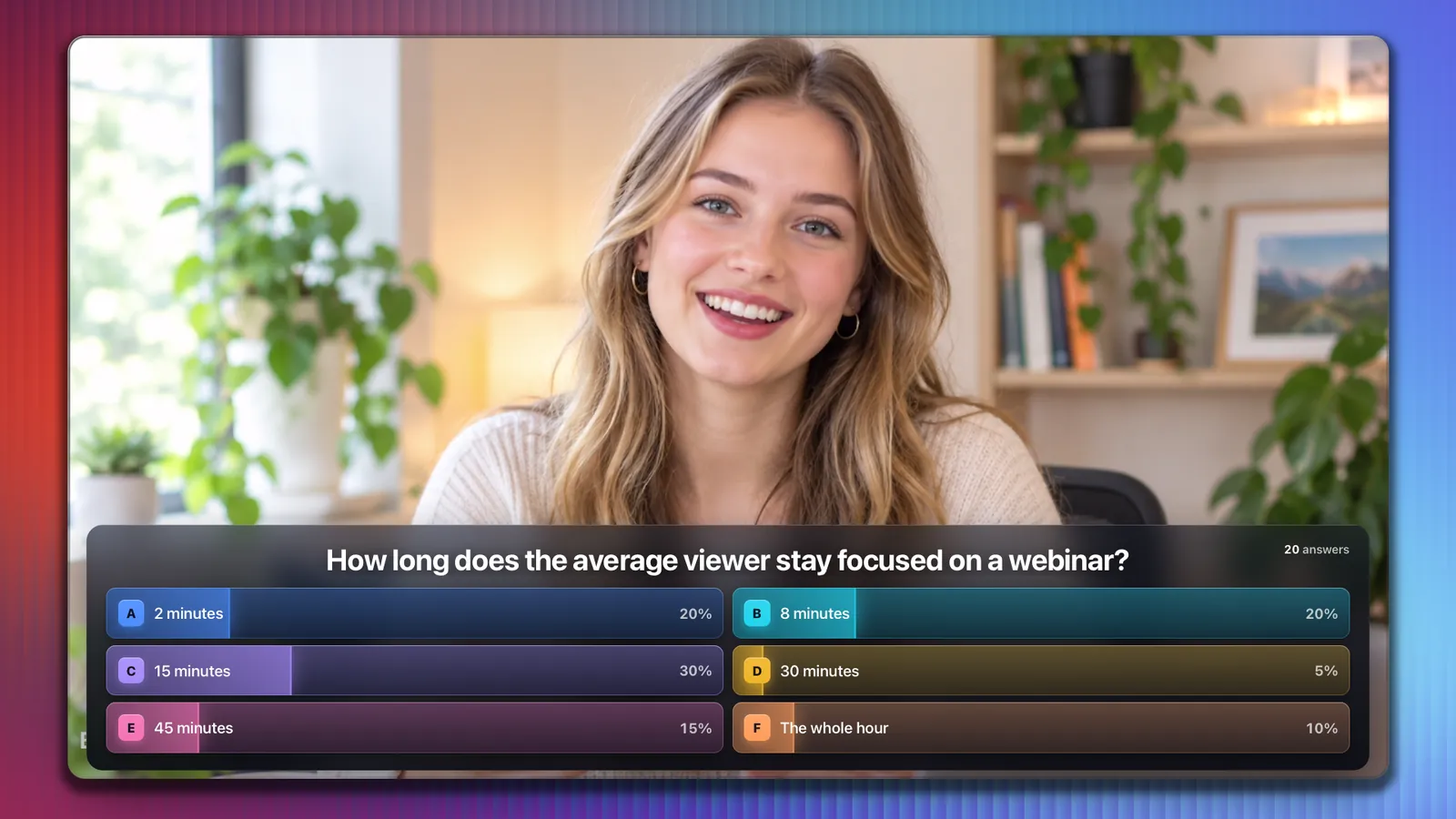
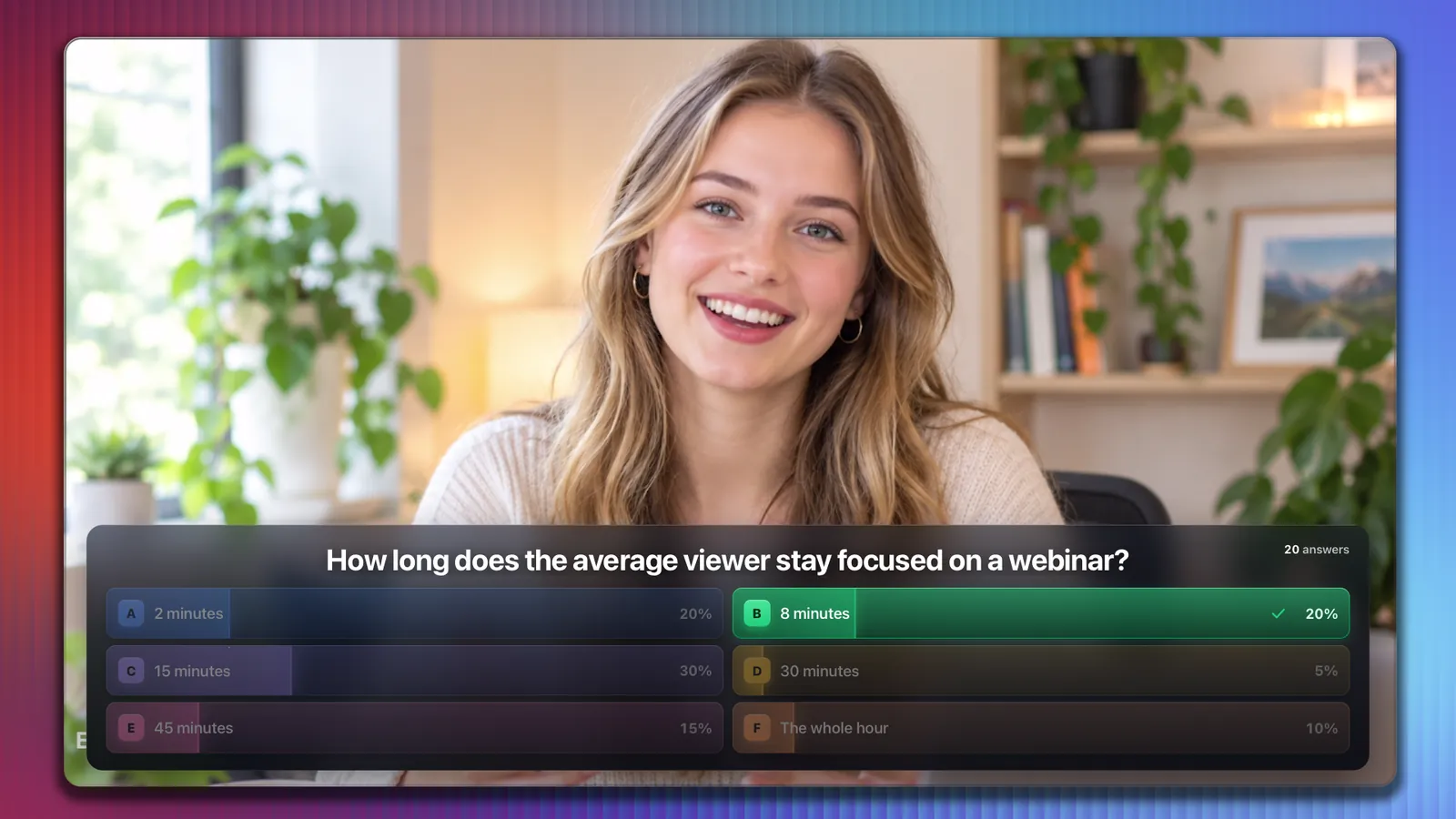
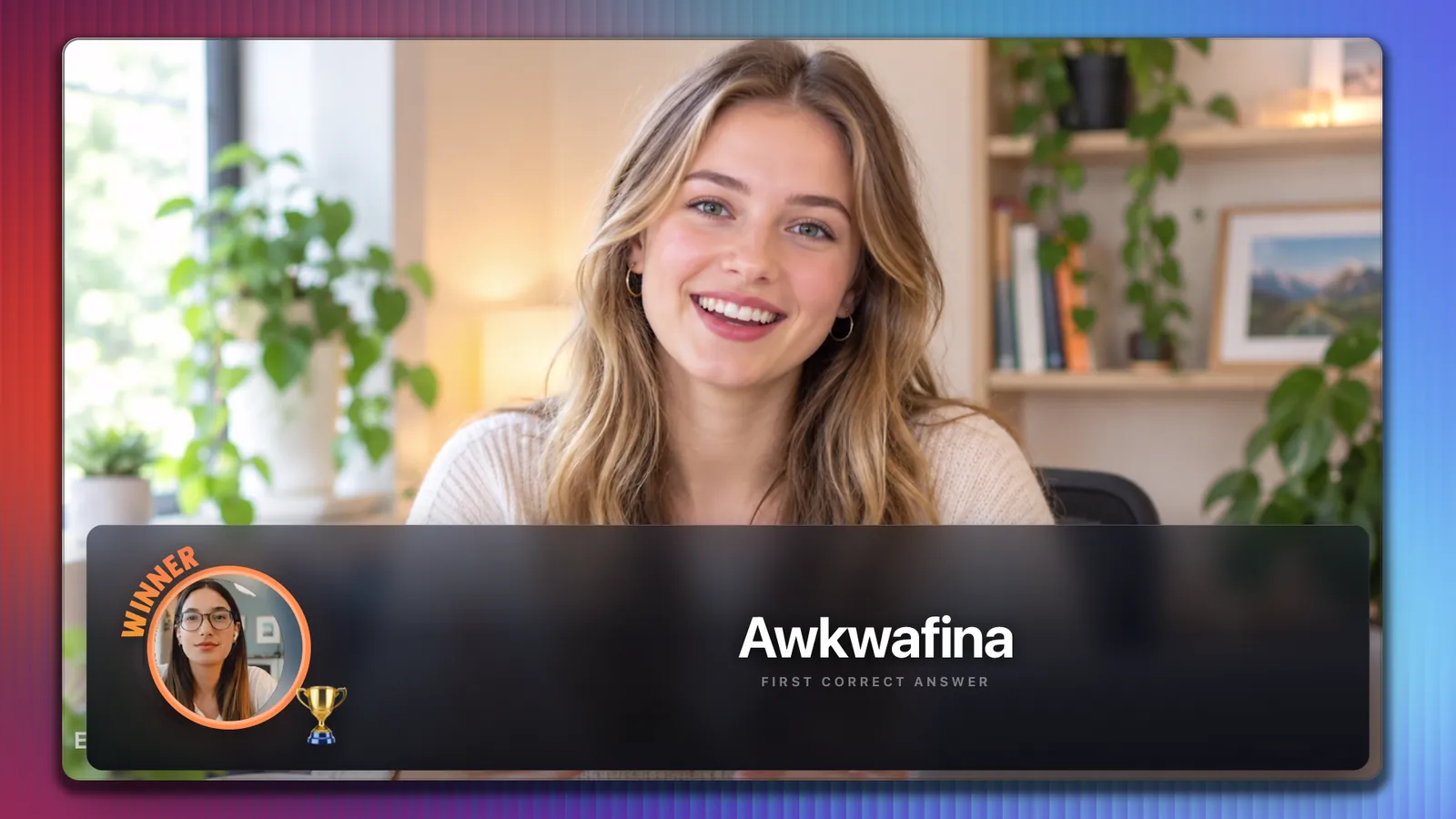
Ask, count, reveal, celebrate.
Write your questions before the show. On air, attendees answer with a letter in chat, each counted once, and the results build as they arrive.
- Up to six options per question
- Quiz mode lights the right answer
- The first correct answer goes on screen with a trophy
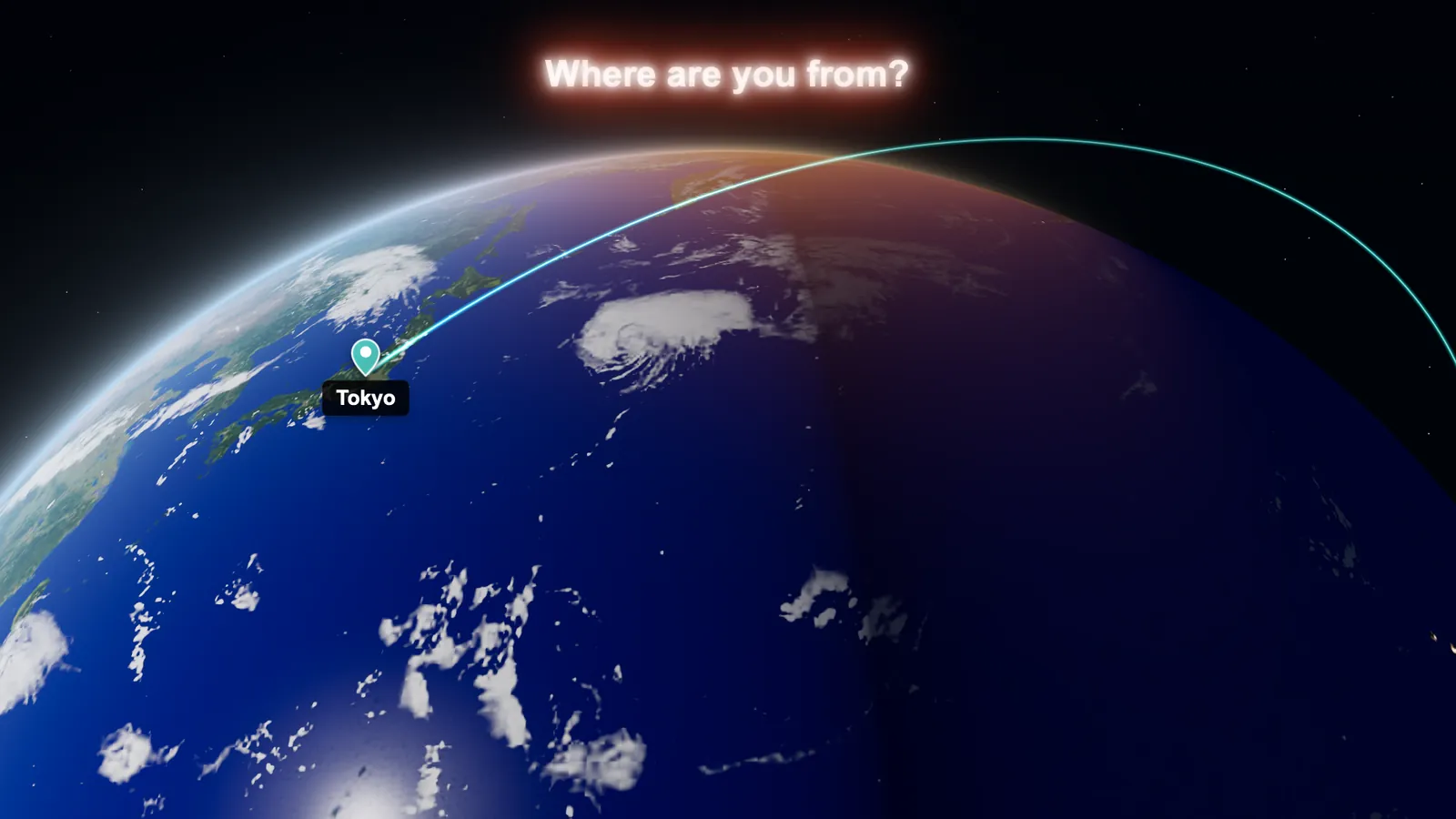
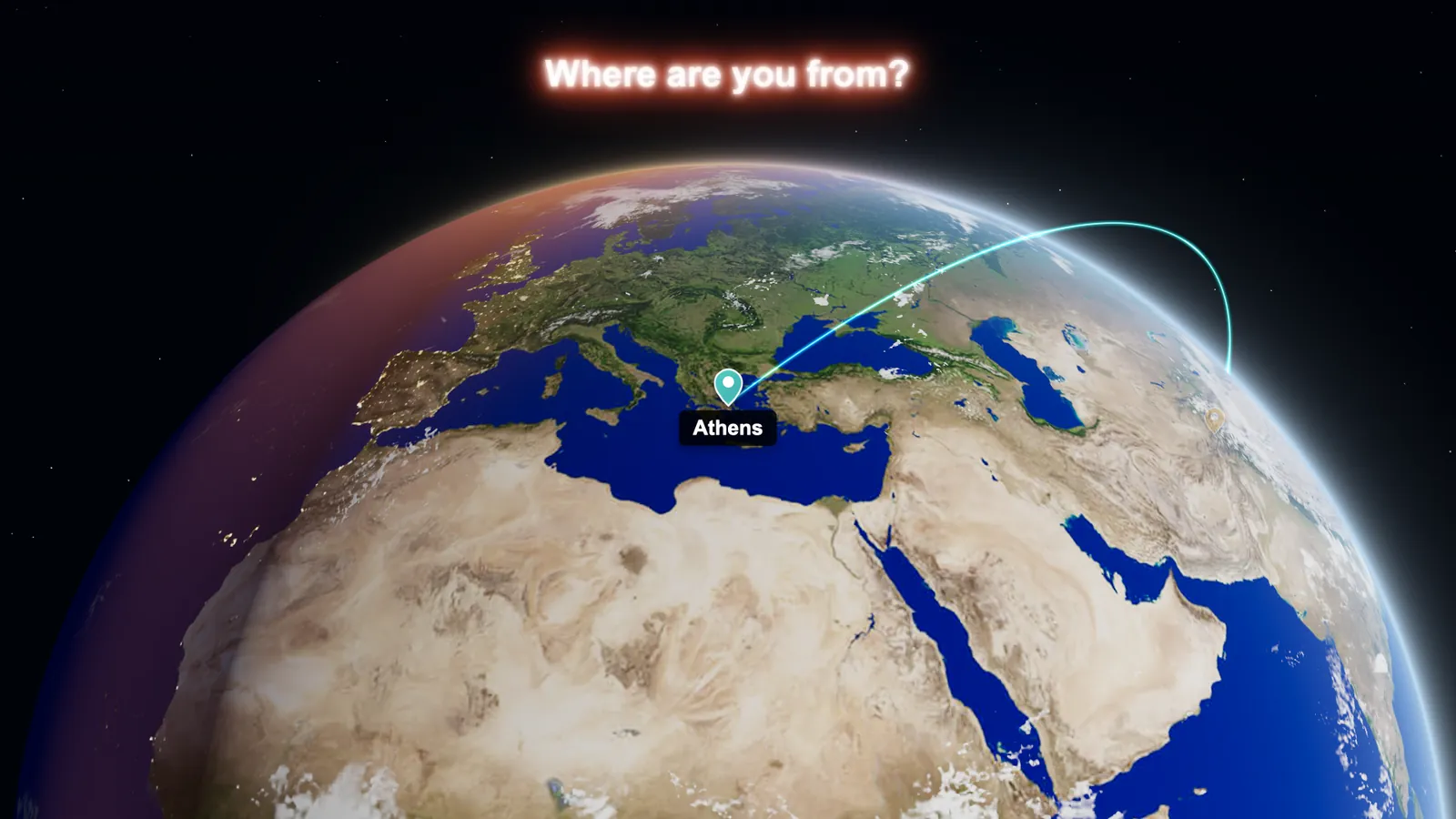
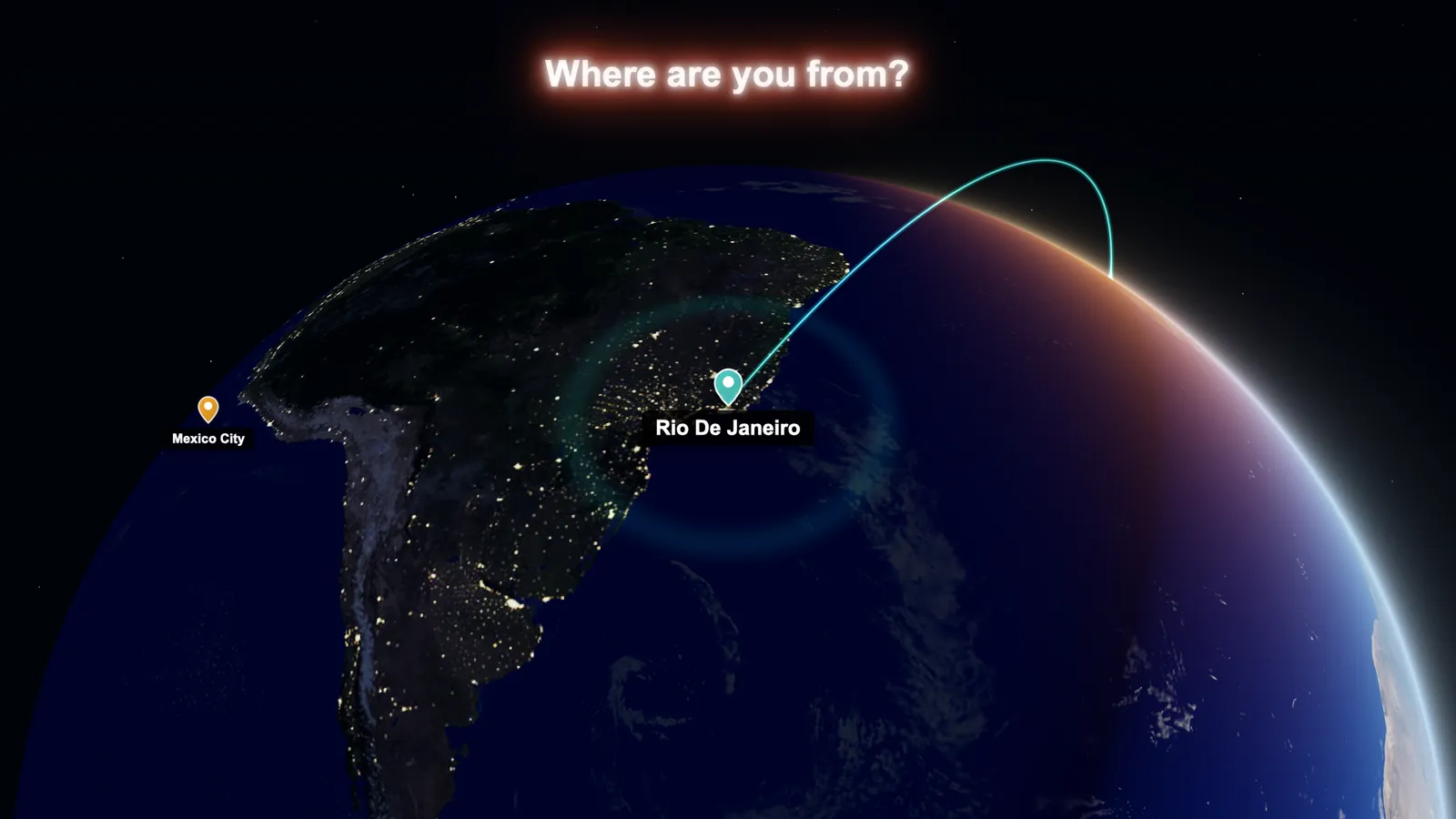
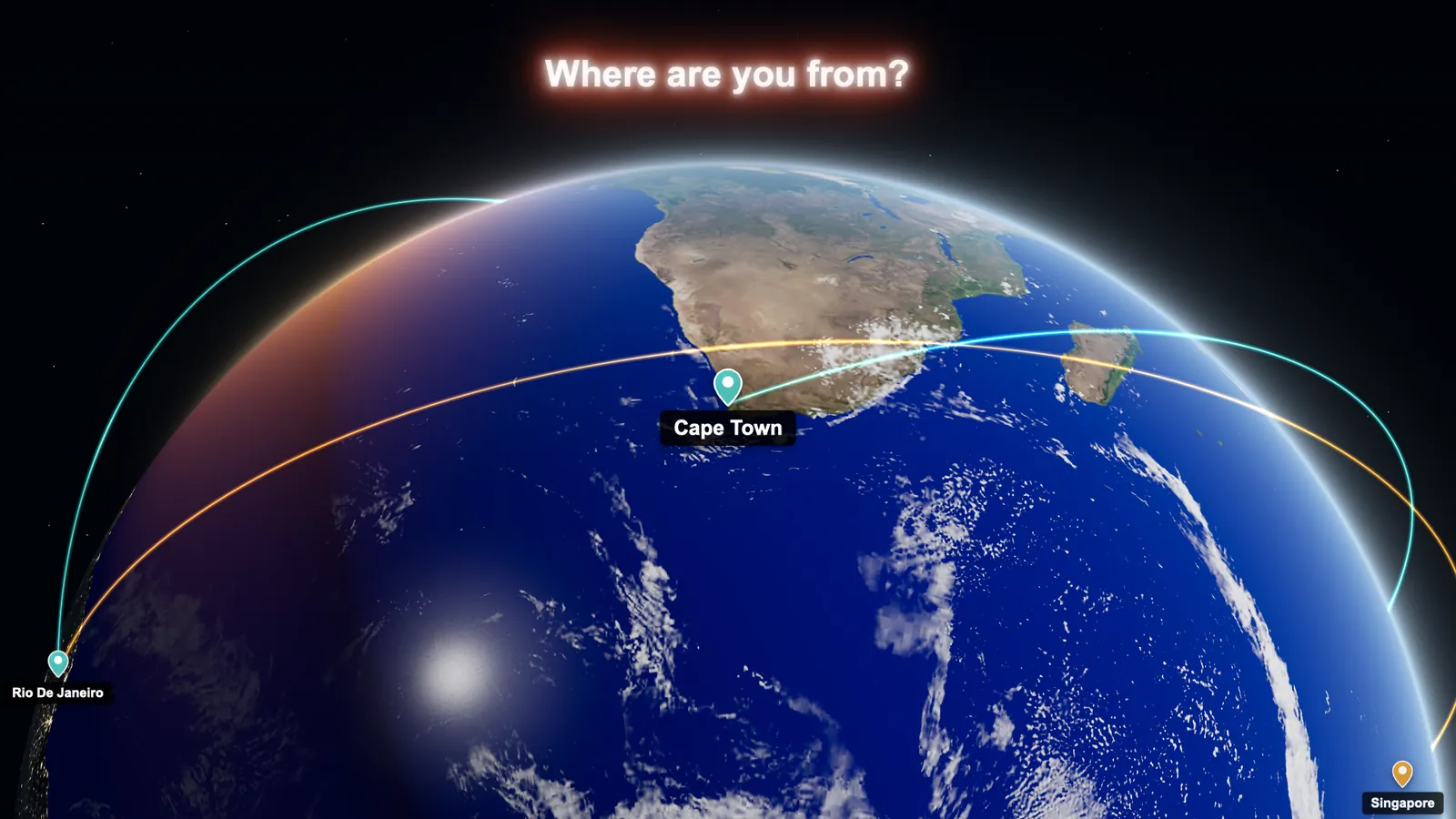
Put the whole room on one globe.
Ask where people are joining from. Every city typed in chat becomes a pin, and the globe flies to each one with an arc from the last.
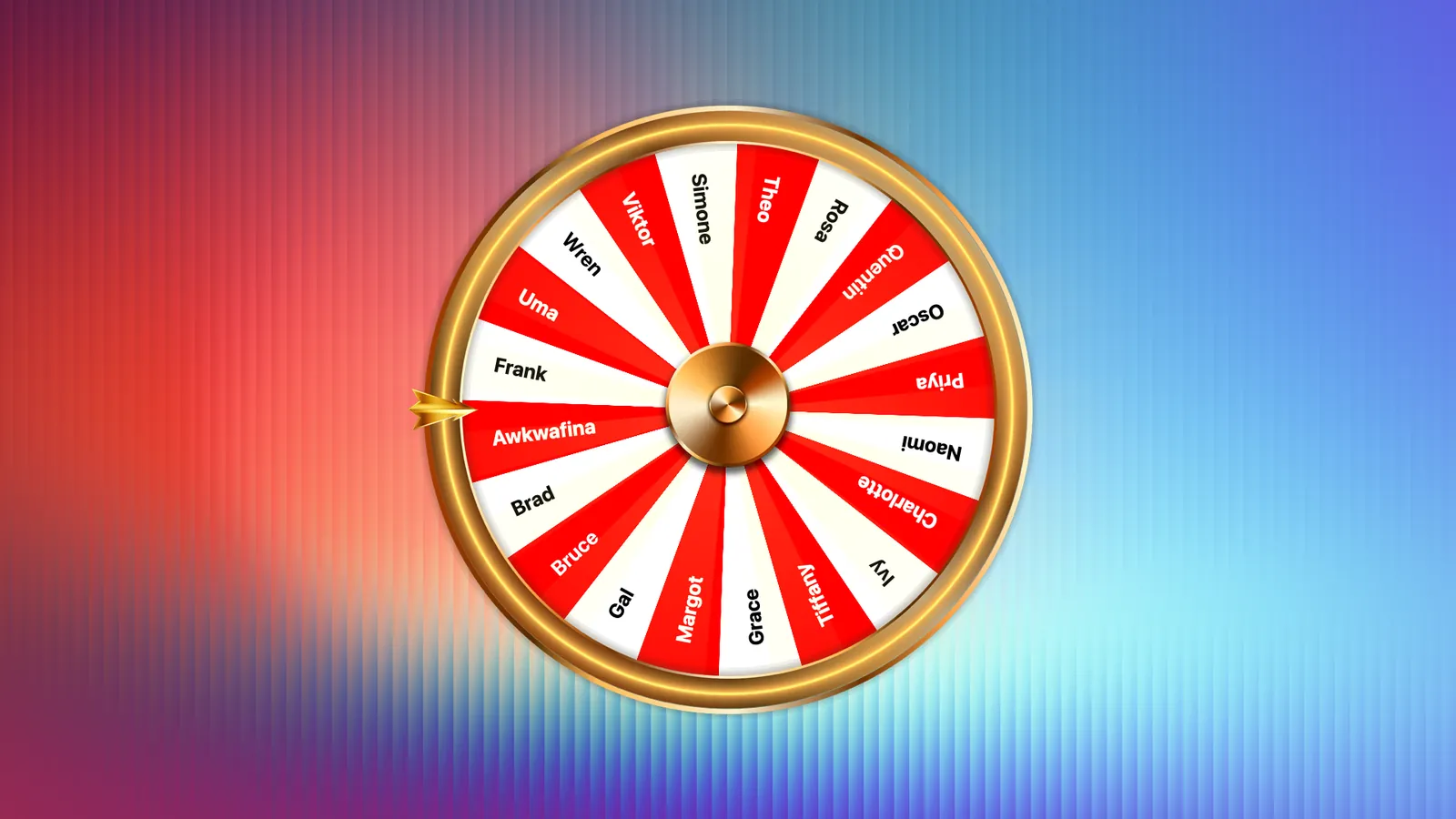
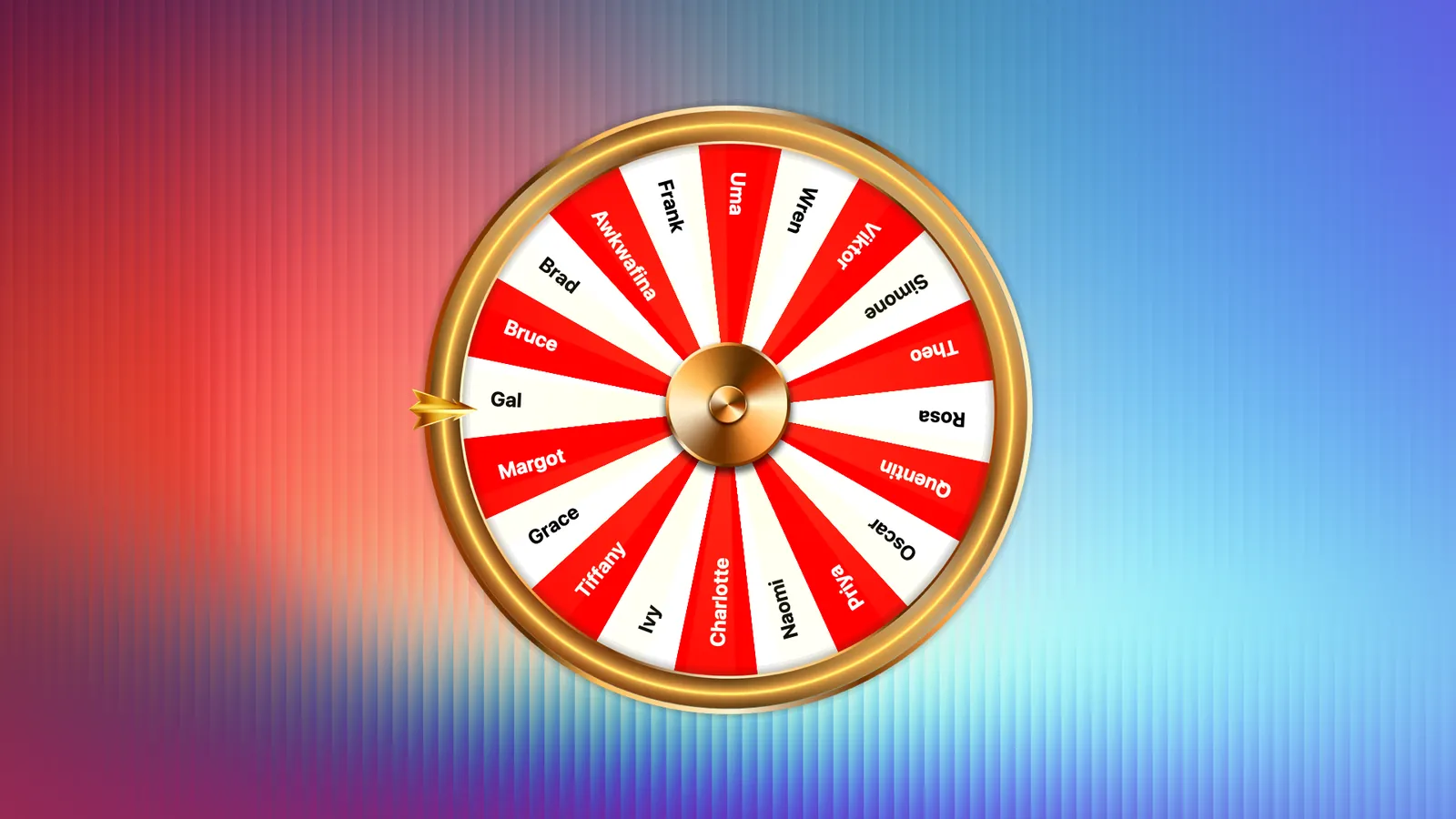
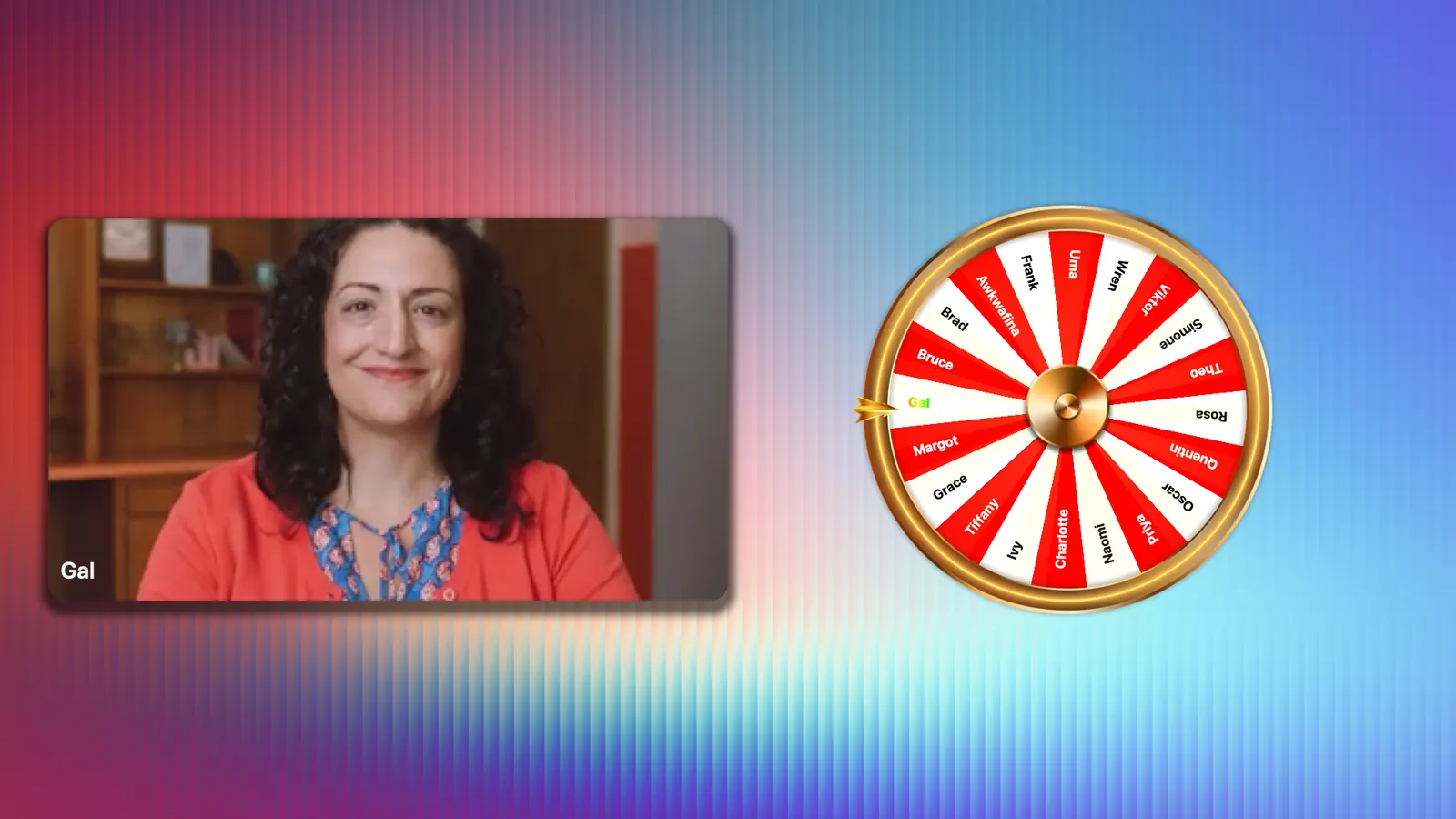
Pick someone, fairly and loudly.
A wheel made of everyone in the room spins, lands and brings the winner's camera on stage. Giveaways, volunteers and cold calls become a moment.
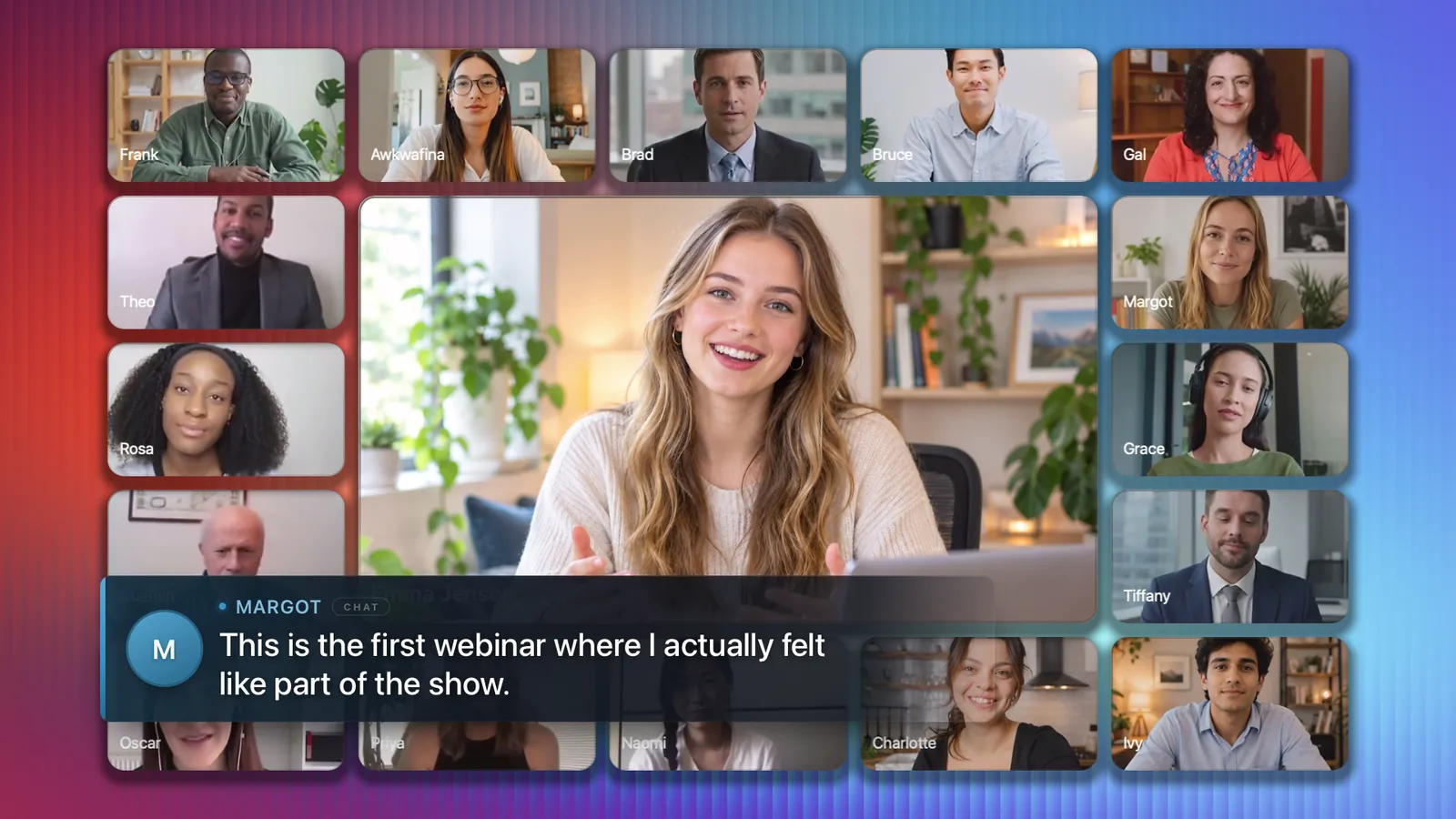
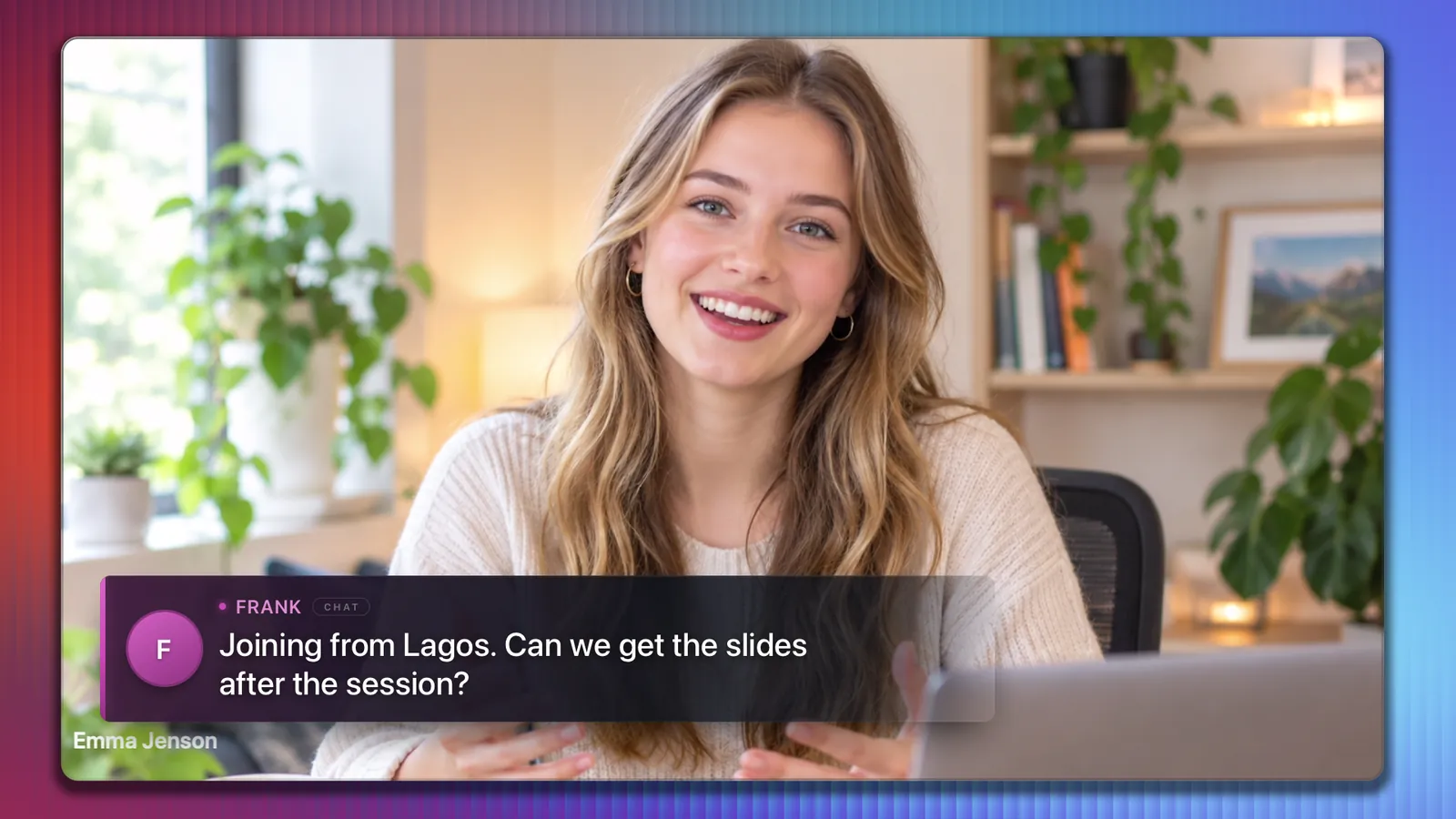
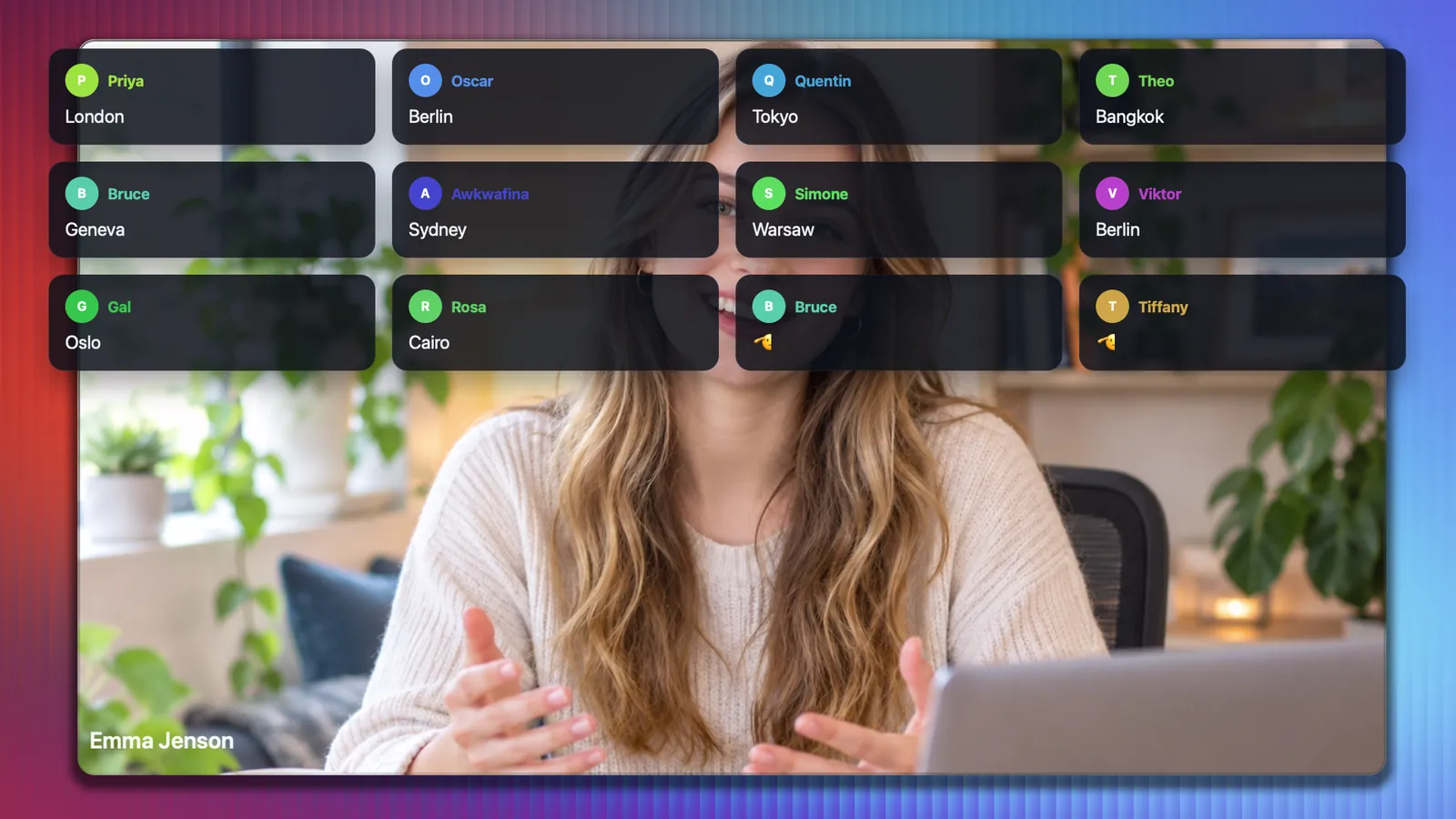
Their words, on your screen.
Click any chat message to put it on air with the sender's name and colour. Or fill the frame with every reply at once on the message wall.
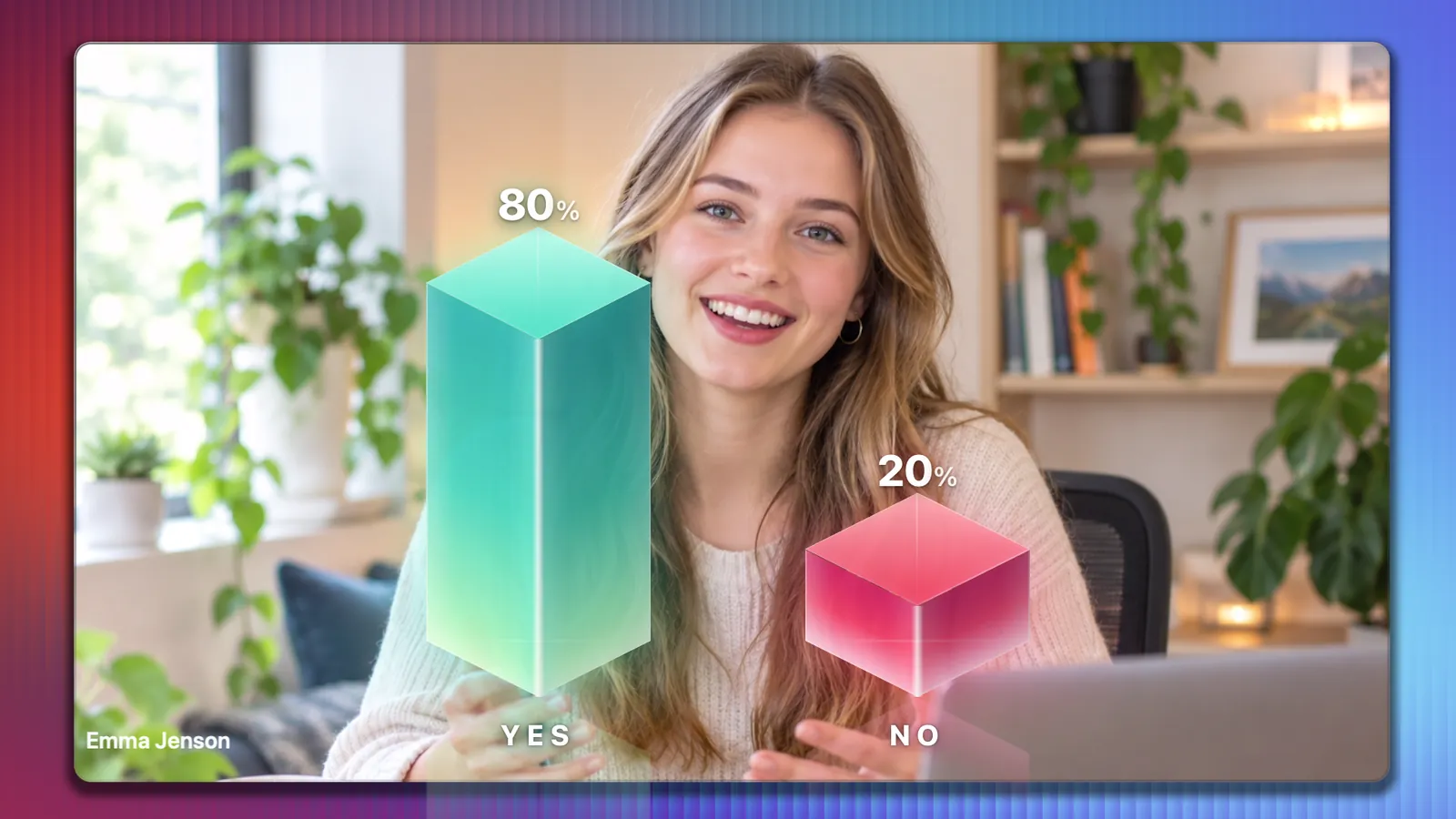
A moment for every point you make.
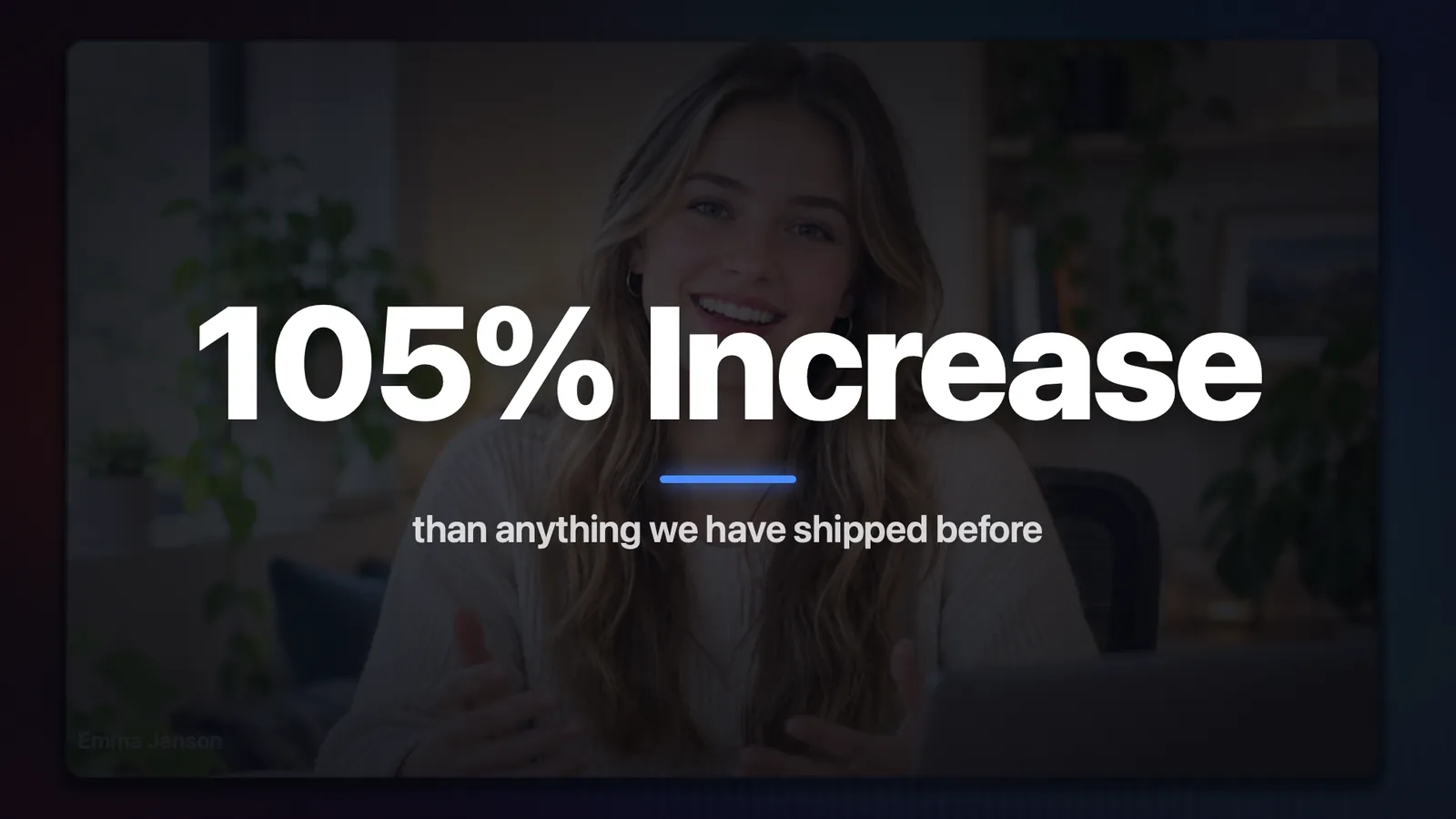
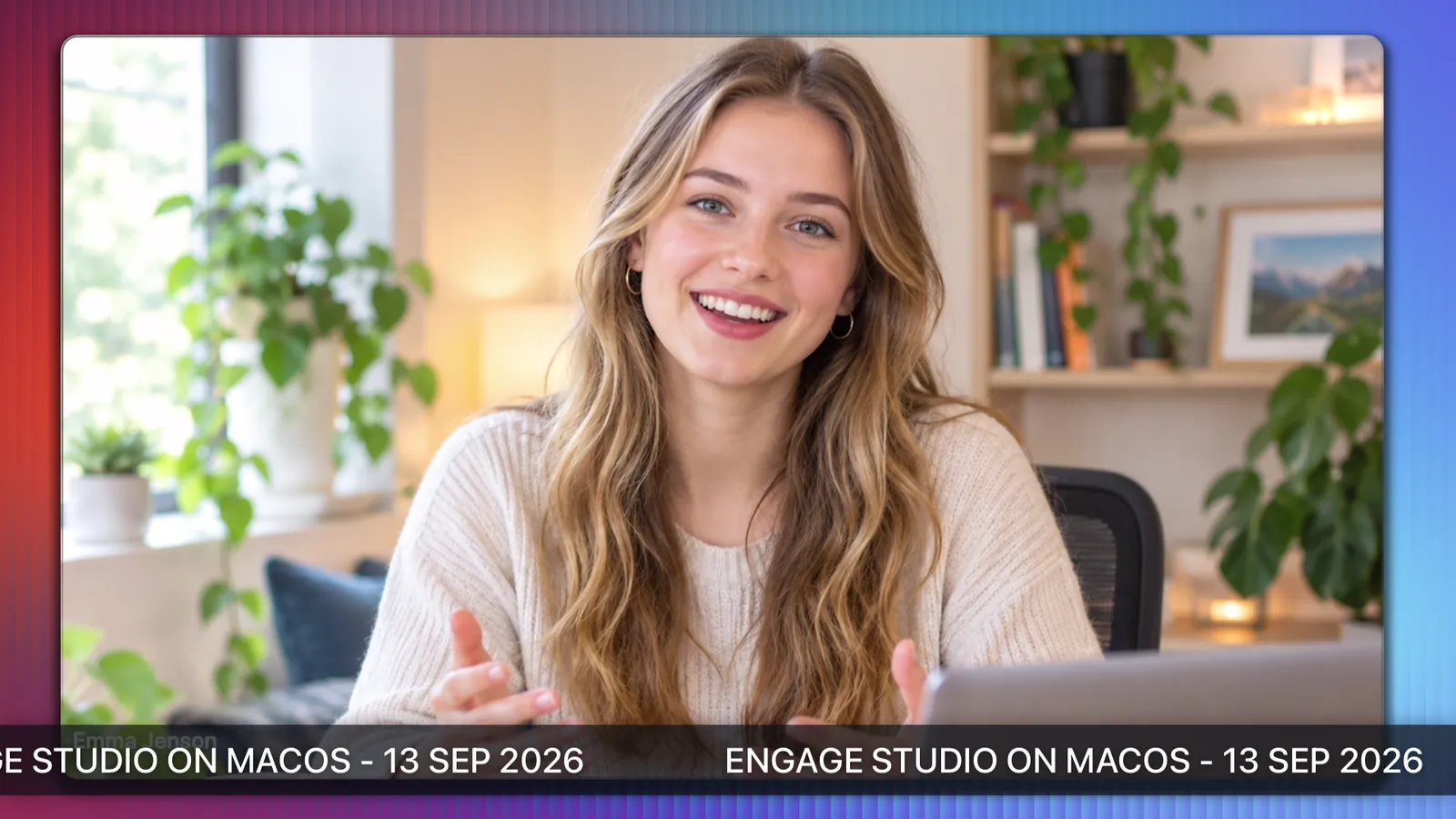
Yes or no votes as glowing 3D bars, a stadium wave across the room, big-number statements, a news ticker and a logo reveal. Each is one press, and each belongs to the scenes you choose.
- Every overlay animates in and out on its own beat
- Add your own alongside them, see Make it yours
Run it alone, or with a crew.
One console holds the whole show, and a teammate can help from any browser. The Q4 release brings the same buttons to your Stream Deck and your phone.
Stream Deck
Scenes, people, polls and overlays on physical keys you can feel.
Pro and ProducerPhone controller
Your deck of buttons on your phone, paired to your computer in seconds.
Pro and ProducerRemote assistant
A teammate puts chat on air and sends you notes from any browser, anywhere.
Pro and ProducerRemote show control
Your assistant presses the scenes too, while you stay on camera.
ProducerMultiple cameras
Cut between up to four cameras of your own, each framed its own way.
ProducerRunning order
Plan the show as milestones, rehearse it, then step through it live.
Pro and ProducerTimers
Countdowns for the start, breaks and exercises, shown on air or kept to yourself.
Every planKeyboard shortcuts
⌘ . and ⌘ , step your slides, ⌘ 1–9 takes a scene, ⌘ B goes back. Ctrl on Windows.
Every planTransitions
Cross-fades, pushes, cubes, flips and whips, set per scene, with the room flying into place.
Every planYour brand, your music, your graphics.
Build a look once and it is ready every time: your overlays, your colours, your music. Keep a different one for each kind of meeting.
Bring your own graphics.
Add your own animations and graphics next to the built-in ones. Video overlays keep their transparency, so a logo sting plays over the live shot rather than in a box. Any web page can be an overlay too, fed live data about the room.
- Video with a transparent background
- Web pages as live graphics, with the room's data
- Placed and timed per scene, in and out on their own beat
- A video overlay closes by itself when it ends
Profiles
A whole look saved under a name: logo, backdrops, scenes, overlays, name plates and how slides move. One for the weekly webinar, one for client workshops, swapped in one click.
1 on Prime · 10 on Pro · unlimited on ProducerColour themes
Tile frames in a colour for each person, one brand colour for everyone, or none. Backdrops, logo and name plates follow your brand.
Every planTheme packs
Hand your artwork to another show: backdrops, scene buttons, bed music and overlay icons in one file, without touching their settings.
ProducerSpotify from the console
Give each scene a playlist, a volume and a fade. Play, pause, skip, shuffle and fade your own Spotify without leaving the show.
Pro and ProducerScreen share mode
Send the show as a screen share instead of a camera feed. Zoom encodes shares for detail rather than faces, so slides and small text stay sharp.
Every planBed music
Your own music under each scene, fading in and out with the cut.
Every planKnow what happened in the room.
Every show is recorded as it runs: who joined and when, what they wrote, how they voted and which scene was live at the time.
Show history
Every session kept in your account, from 30 days on Prime to for good on Producer.
Every planSpreadsheet export
Participants, chat, poll answers, engagement and a timeline of the show, in one workbook.
Pro and ProducerSee it run your next show.
A 30-minute live demo in Zoom. Bring a session you are planning and watch it become a production.